













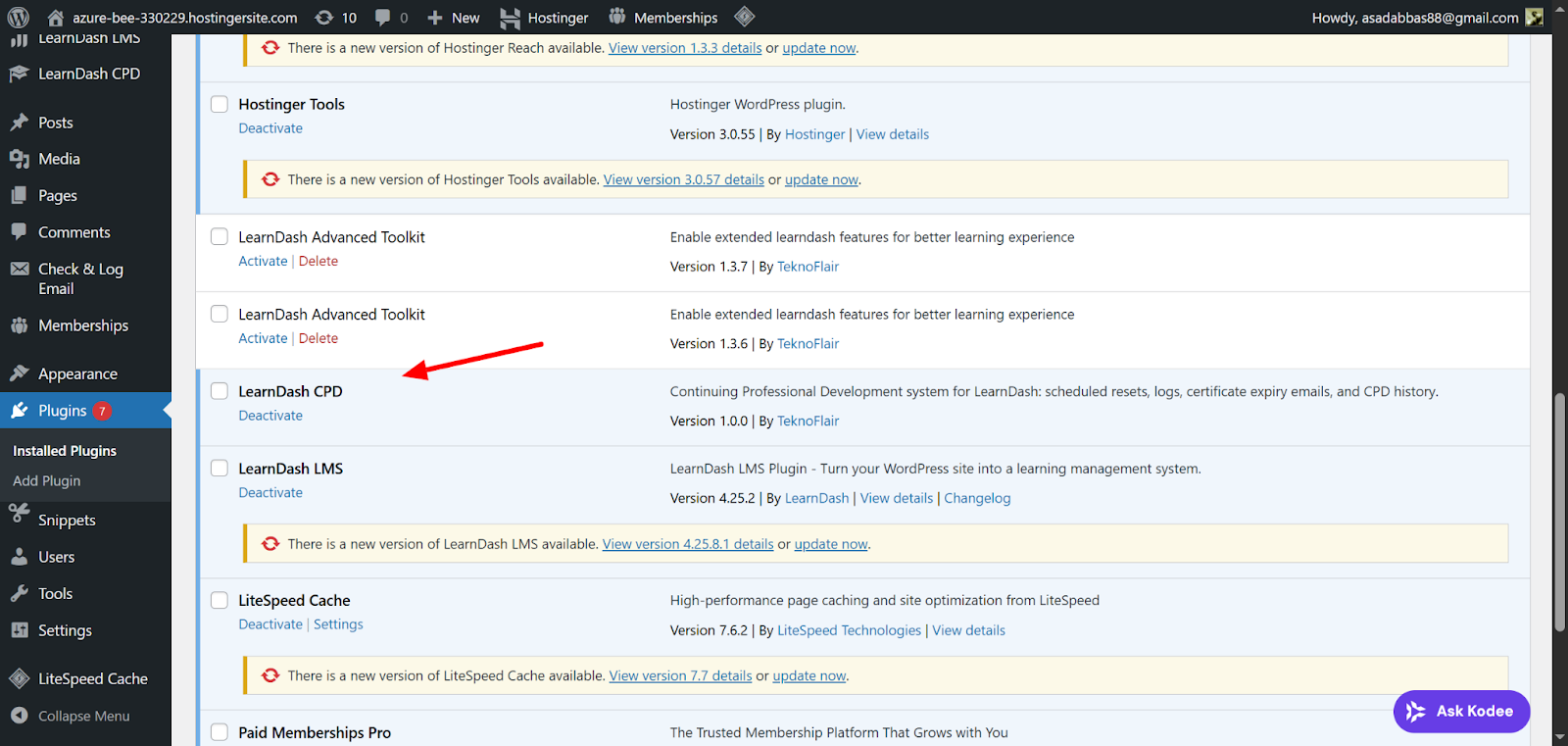
Confirm the Plugin Is Active
Go to: WordPress Admin → Plugins
Make sure LD CPD is showing as Active.
CPD Menu & License
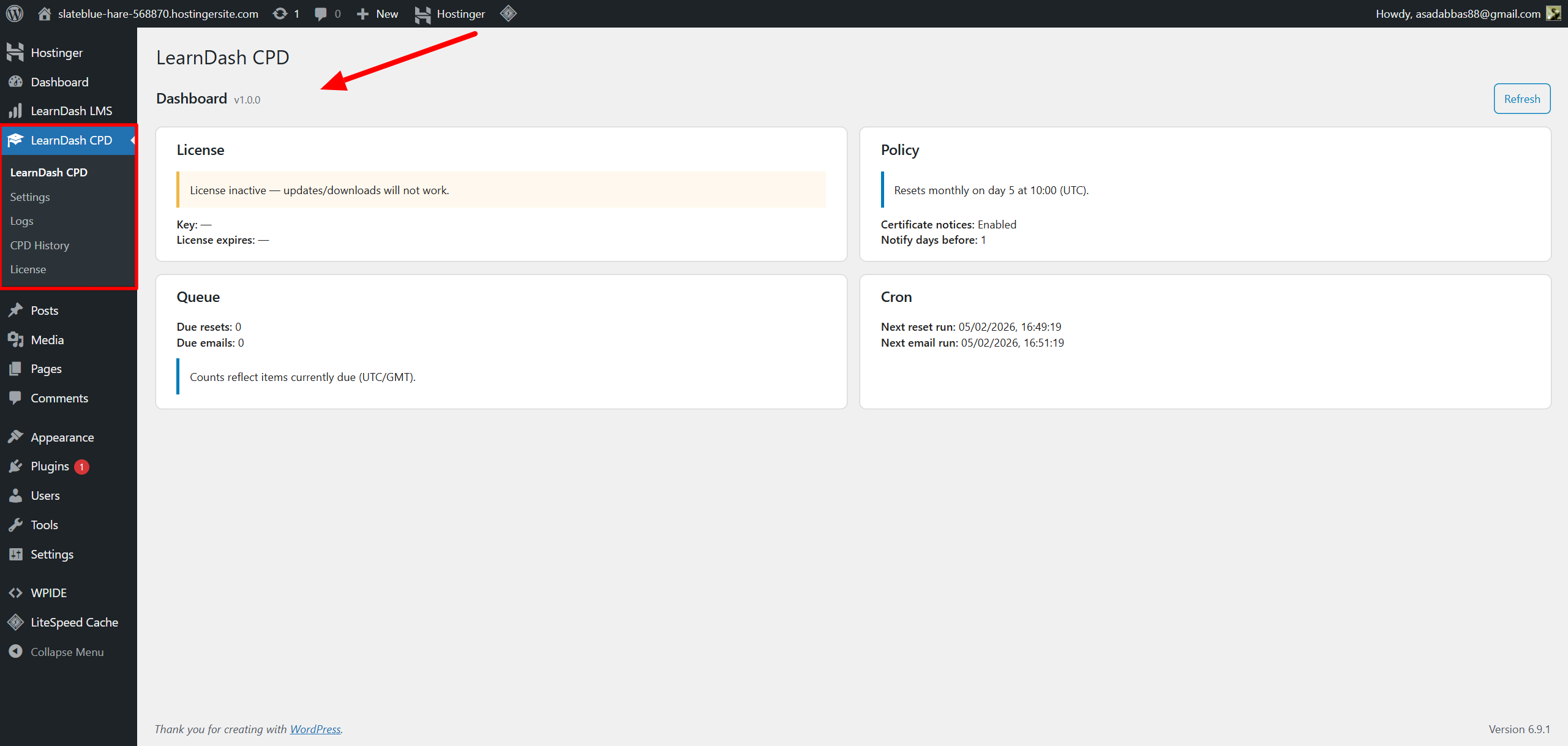
After activation, a new menu named LearnDash CPD appears in the WordPress admin sidebar. This menu contains:
- LearnDash CPD ( Dashboard )
- Settings
- Logs
- CPD History
- License
Dashboard Overview
Go to: WordPress Admin → LearnDash CPD (Dashboard)
The dashboard displays four quick-view panels:
- License — shows activation status
- Policy — shows the currently active reset policy
- Queue — shows the number of due resets and due emails
- Cron — shows the next scheduled reset and email run times
License Activation
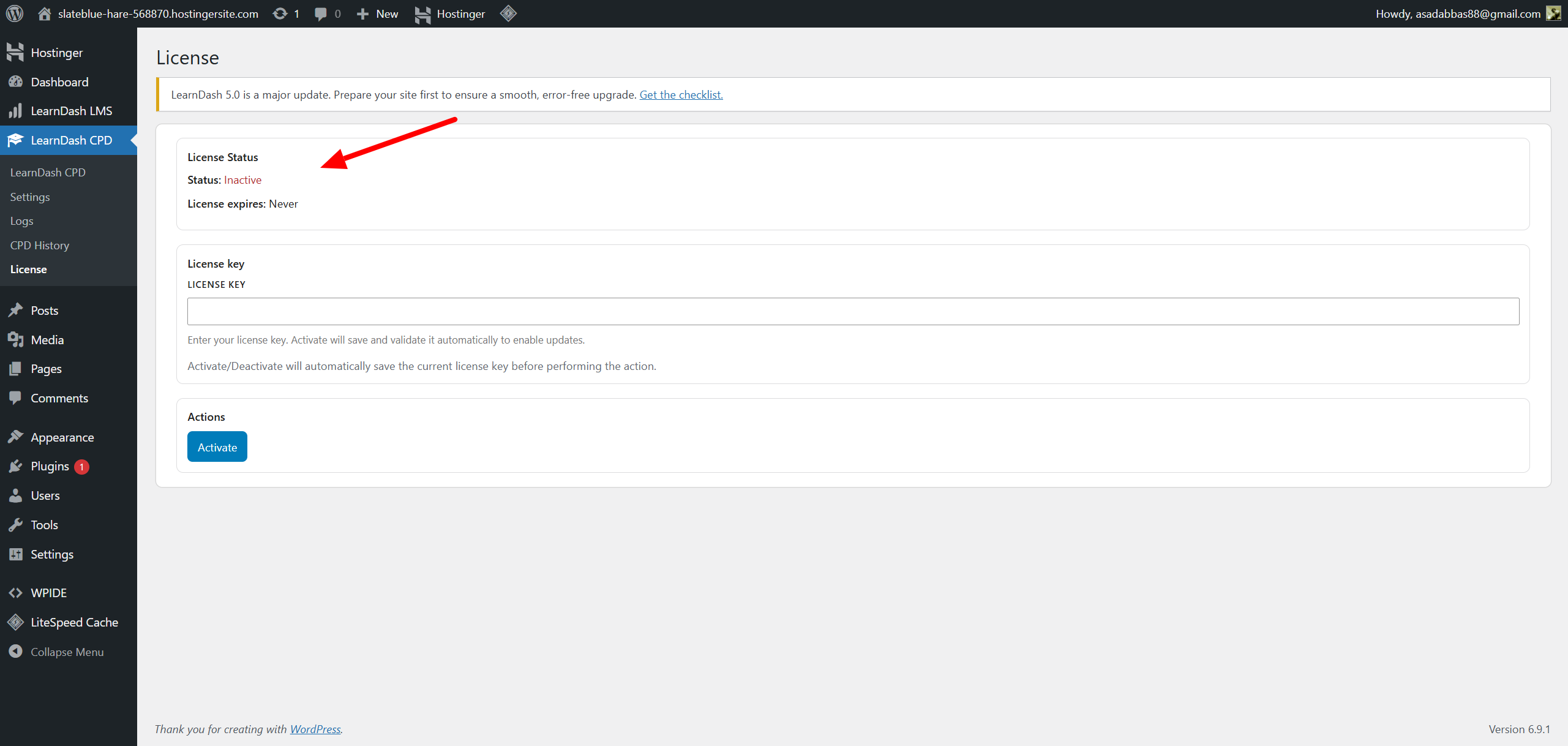
Go to: LearnDash CPD → License
This page allows you to enter and activate your license key so the plugin can receive updates.
To activate your license:
- Enter your license key in the License Key field.
- Click Activate — the key is saved and validated automatically.
You can also see your current license status on both this page and the Dashboard.
If the license is already active, the button will change to Deactivate.
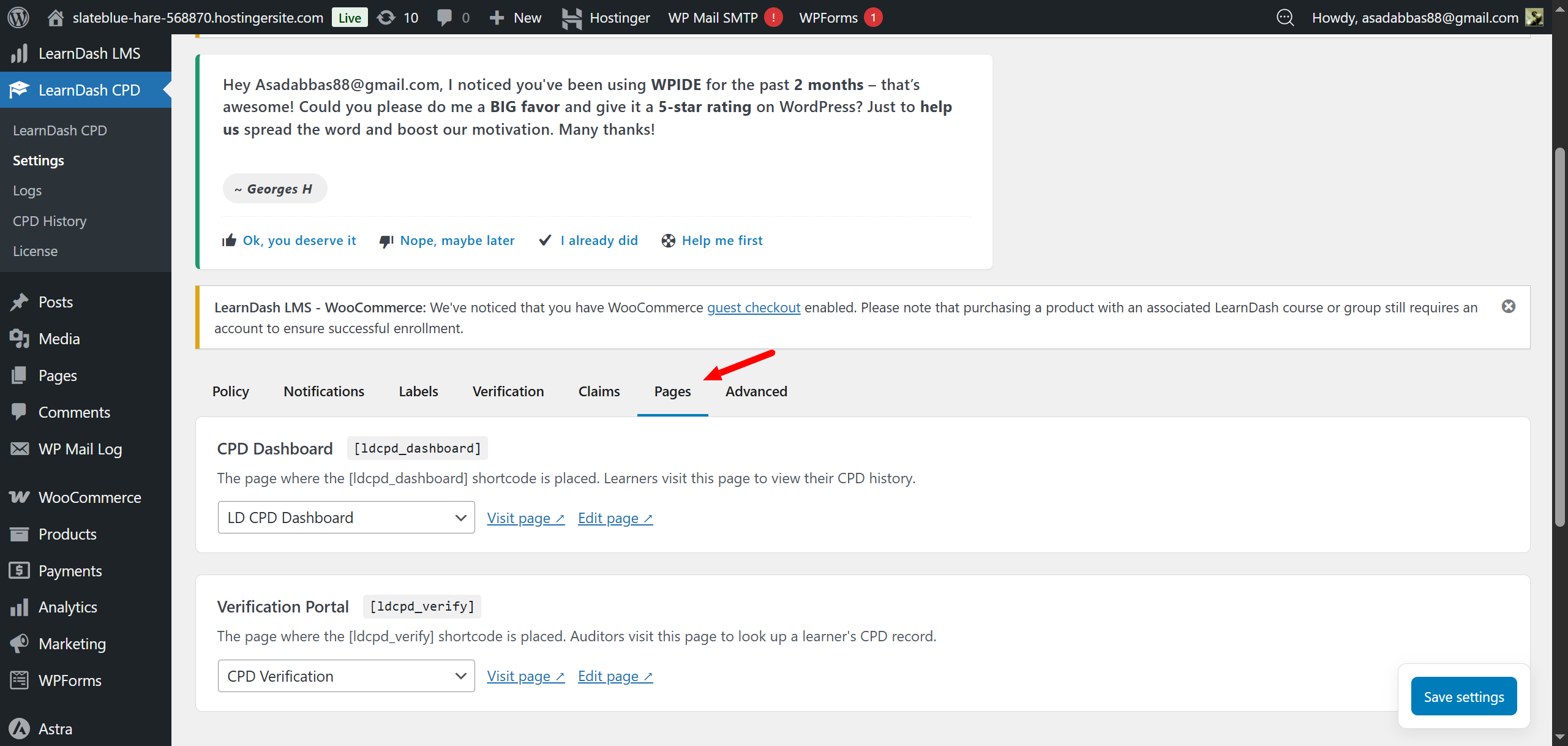
One-Click Shortcode Pages
Go to: LearnDash CPD → Settings → Pages tab
In the Pages tab you can assign the shortcode for the CPD dashboard and verification portal to any page directly, or specifically create separate pages directly from there without doing anything manually — and it will auto create it.