















Settings
Go to: WordPress Admin → LearnDash CPD → Settings
This page allows you to configure global behavior for the LearnDash CPD plugin.
The settings page contains the following tabs:
- Policy – Configure global CPD reset policies.
- Notifications – Configure reminder emails for learners with incomplete courses.
- Labels – For customizing Credit Labels (like changing “Credits” to “Units”).
- Verification – For managing the certificate auditing settings.
- Claims – For handling the settings related to manual credit submissions.
- Pages – Assign the CPD dashboard and verification portal shortcodes to existing pages, or auto-create dedicated pages directly from this tab.
- Integrations – Configure third-party integrations including WP Fusion, Uncanny Automator, AutomatorWP, and Webhooks.
- Advanced – Manage additional plugin settings such as data cleanup when uninstalling the plugin.
Policy Tab
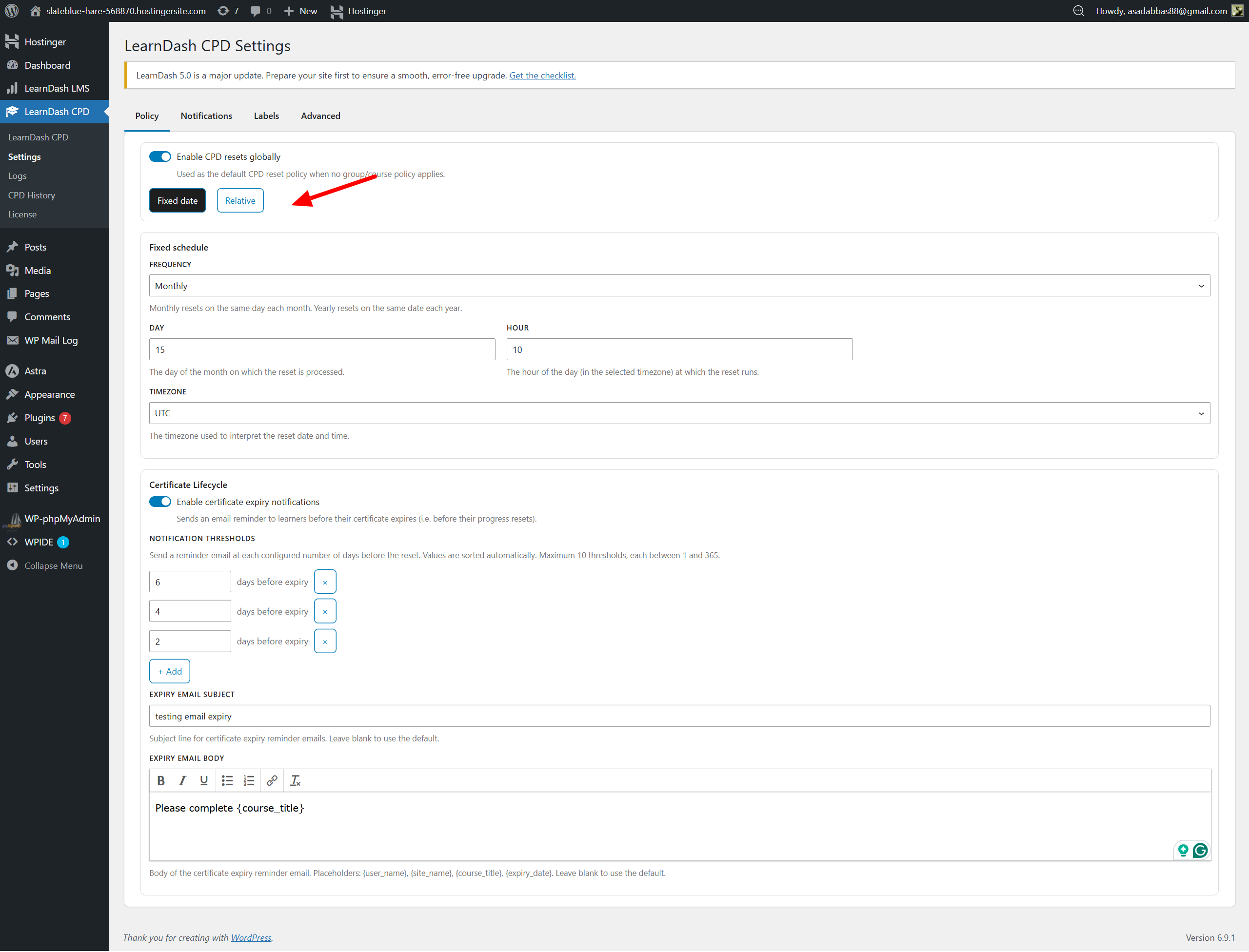
Fixed Date Reset Policy
Use this type when you want all learners to reset on the same calendar date.
Examples:
- Every 1st January
- Every month on a specific date
- Every year on a specific month and day
Fields Explained
Frequency
- Monthly: resets every month
- Yearly: resets once each year
Month (visible only when Yearly is selected)
Select the month the reset should occur. Example: Selecting January means resets run every January.
Day
Select the day of the month the reset will run. Example: Selecting 1 runs the reset on the 1st.
Hour
Select the hour of the day when the reset should be executed. Example: 05:00 means the reset runs at 5 AM.
Time Zone
Choose the time zone used for the scheduled reset. This ensures correct execution time for different regions.
Certificate Lifecycle – Multiple Expiry Notifications
Enabling this feature allows users to receive reminder emails before their certificates expire. All email triggers are recorded for audit purposes.
Notifications
- Add up to 10 separate expiry notifications.
- Each notification can be scheduled 1–365 days before the certificate expiry date.
- You may set a custom email subject and email body for each notification.
- If left blank, the default subject and body will be used.
Email Body
Body of the certificate expiry reminder email.
Placeholders you can use: {user_name}, {site_name}, {course_title}, {expiry_date}
Leave blank to use the default message.
Relative Reset Policy
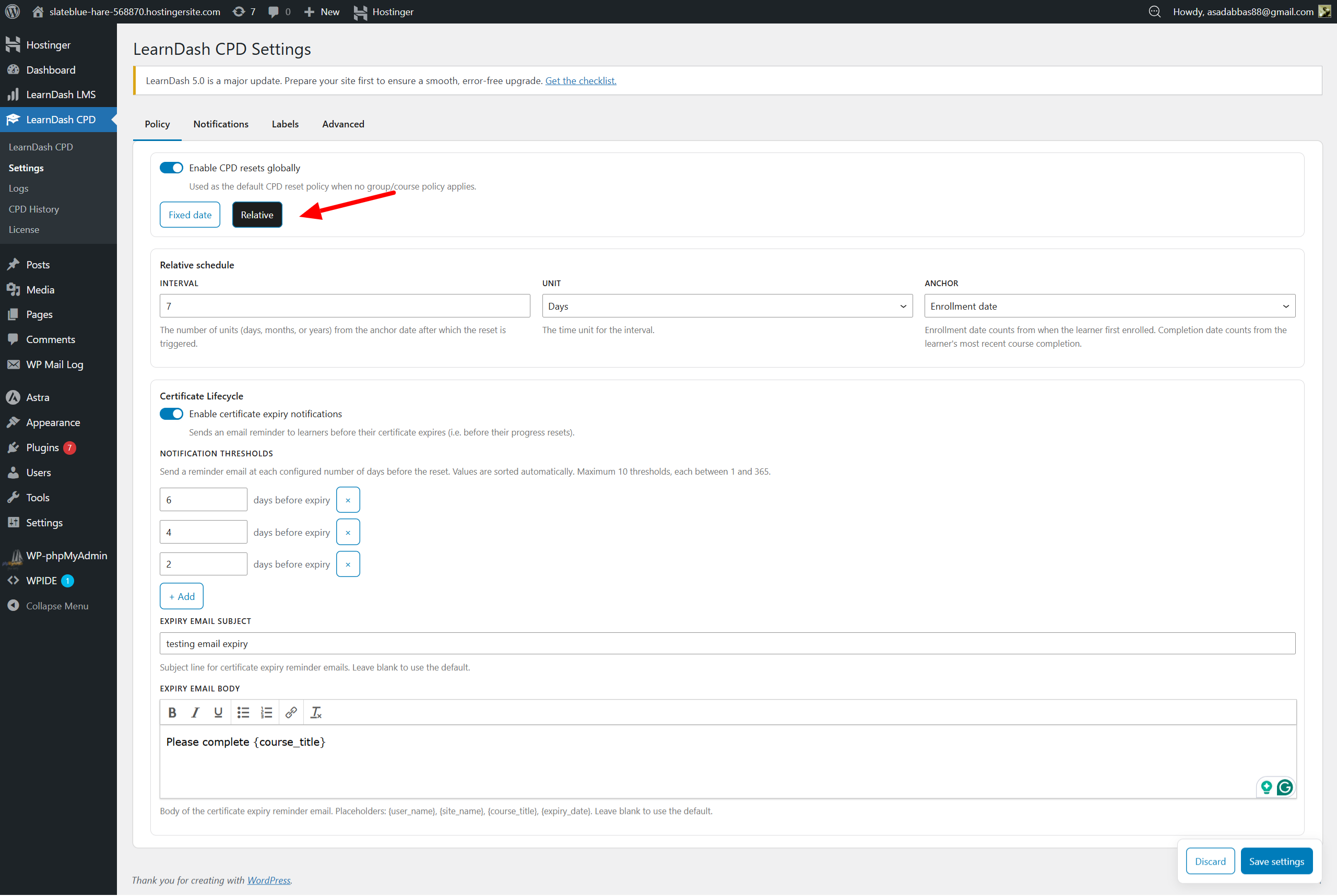
Use this type when each user should reset based on their own timeline.
Examples:
- 365 days after enrollment
- 12 months after completion
- Every 730 days after the most recent completion
Fields Explained
Relative Schedule – Interval
Enter a numeric value to define the interval. Examples: 365, 12, 24 The value pairs with the “Unit” field.
Unit
Select the time unit for the interval:
- Days
- Months
- Years
Example: Interval = 12 and Unit = Months → reset every 12 months.
Anchor Choose the date the interval should be calculated from:
- Enrollment Date: resets X days/months/years after the learner enrolled
- Completion Date (most recent): resets X days/months/years after the latest completion
Certificate Lifecycle – Multiple Expiry Notifications
Enabling this feature allows users to receive reminder emails before their certificates expire. All email triggers are recorded for audit purposes.
Notifications
- Add up to 10 separate expiry notifications.
- Each notification can be scheduled 1–365 days before the certificate expiry date.
- You may set a custom email subject and email body for each notification.
- If left blank, the default subject and body will be used.
Email Body
Body of the certificate expiry reminder email.
Placeholders you can use:{user_name}, {site_name}, {course_title}, {expiry_date}
Leave blank to use the default message.
Notifications Tab
Open the Notifications tab.
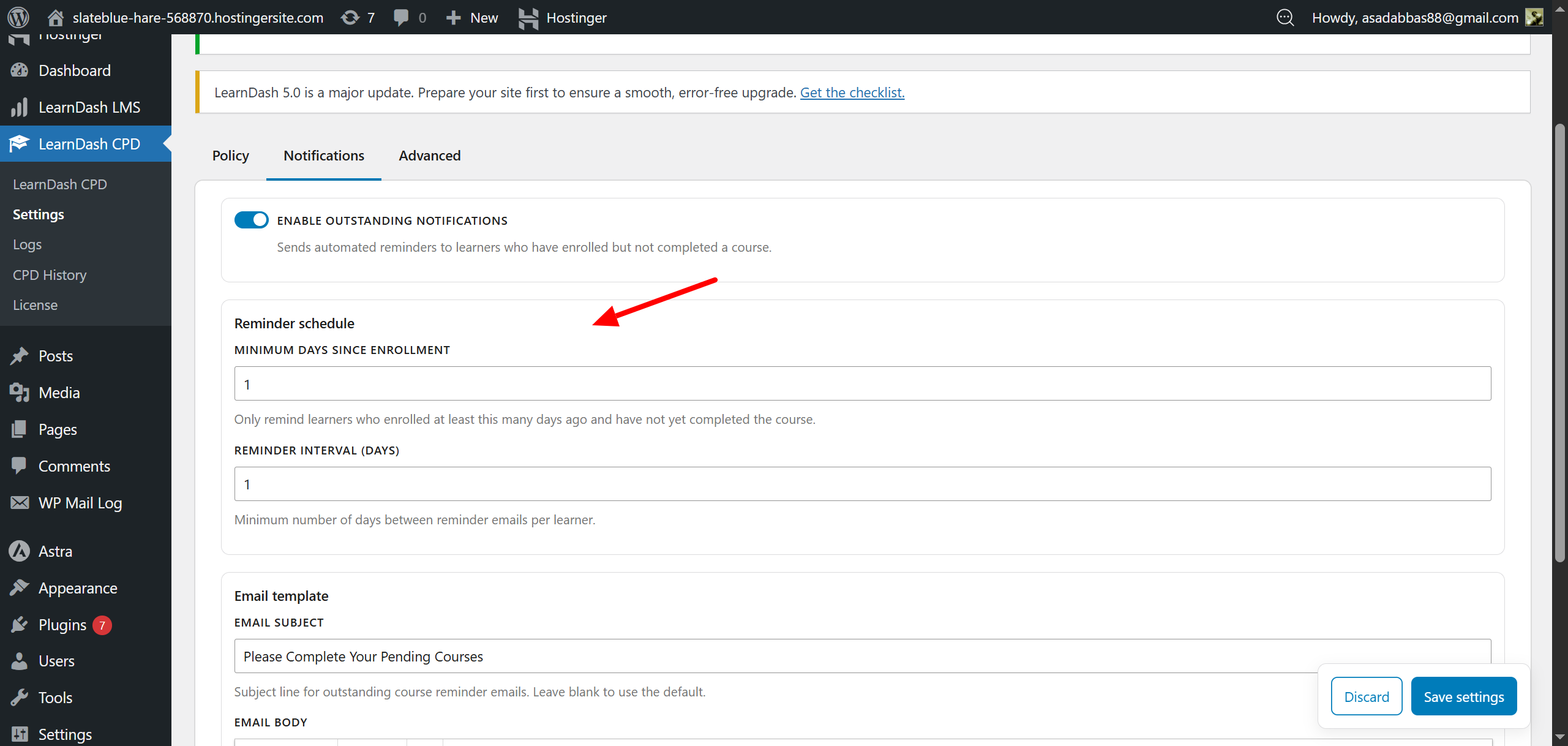
This section allows administrators to send automated reminder emails to learners who have enrolled in courses but have not completed them.
Enable Outstanding Notifications
Enable this option to activate reminder emails for outstanding courses.
When enabled, the system periodically checks for learners who:
- Are enrolled in a course
- Have not completed the course
- Match the reminder schedule conditions
Reminder Schedule
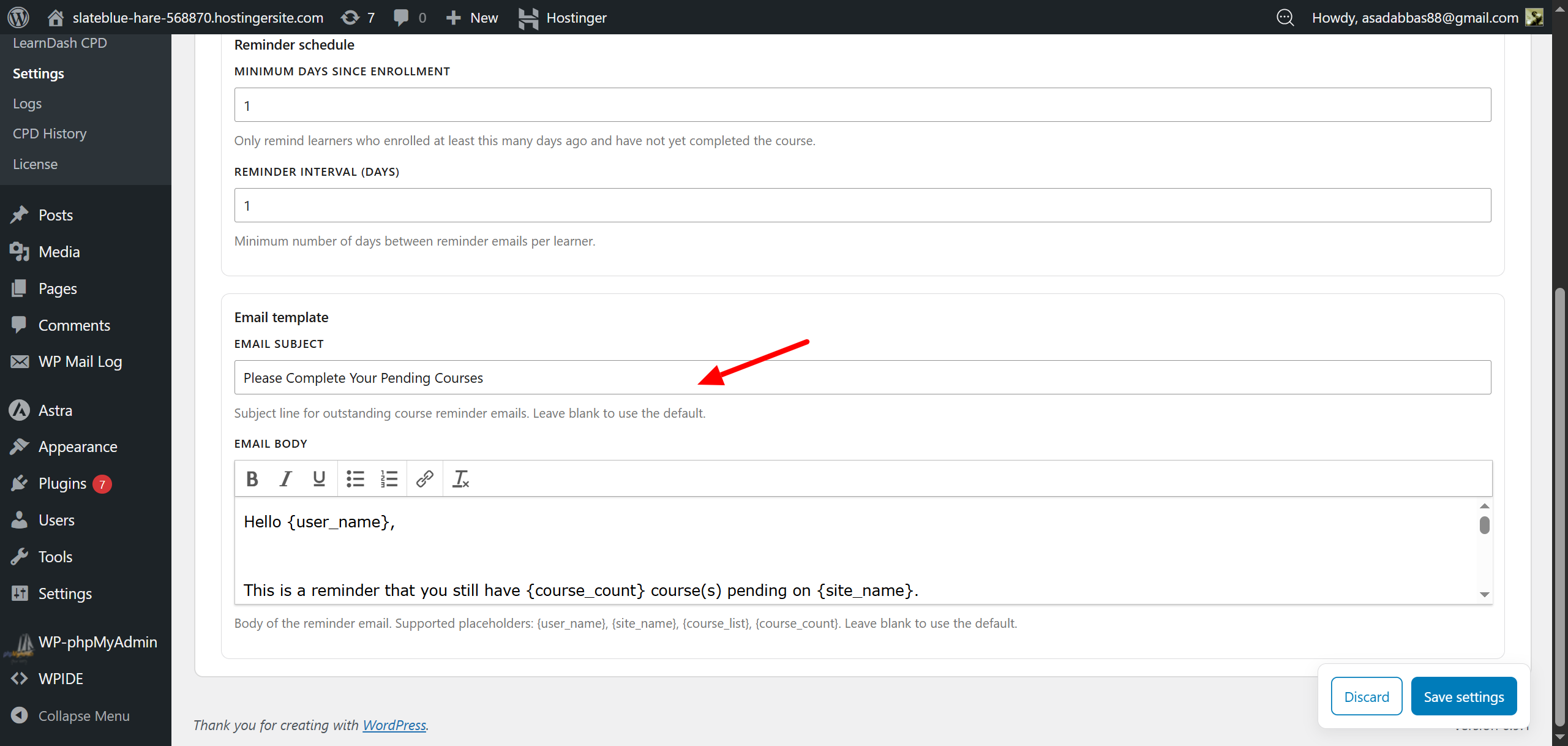
Minimum Days Since Enrollment
Defines how many days must pass after enrollment before a learner becomes eligible for reminders.
Example: 1 → reminders can begin 1 day after the learner enrolls.
Reminder Interval (Days)
Defines the minimum number of days between reminder emails for the same learner.
Example: 7 → A learner will receive at most one reminder every 7 days.
This prevents excessive reminder emails.
Email Template
This section allows you to customize the reminder email sent to learners.
Email Subject
Defines the subject line of the reminder email.
If left empty, the plugin will use the default subject.
Email Body
Defines the email content sent to learners.
Supported placeholders:
{user_name}– Learner’s name{site_name}– Website name{course_list}– List of incomplete courses{course_count}– Number of pending courses
If left empty, the default email template will be used.
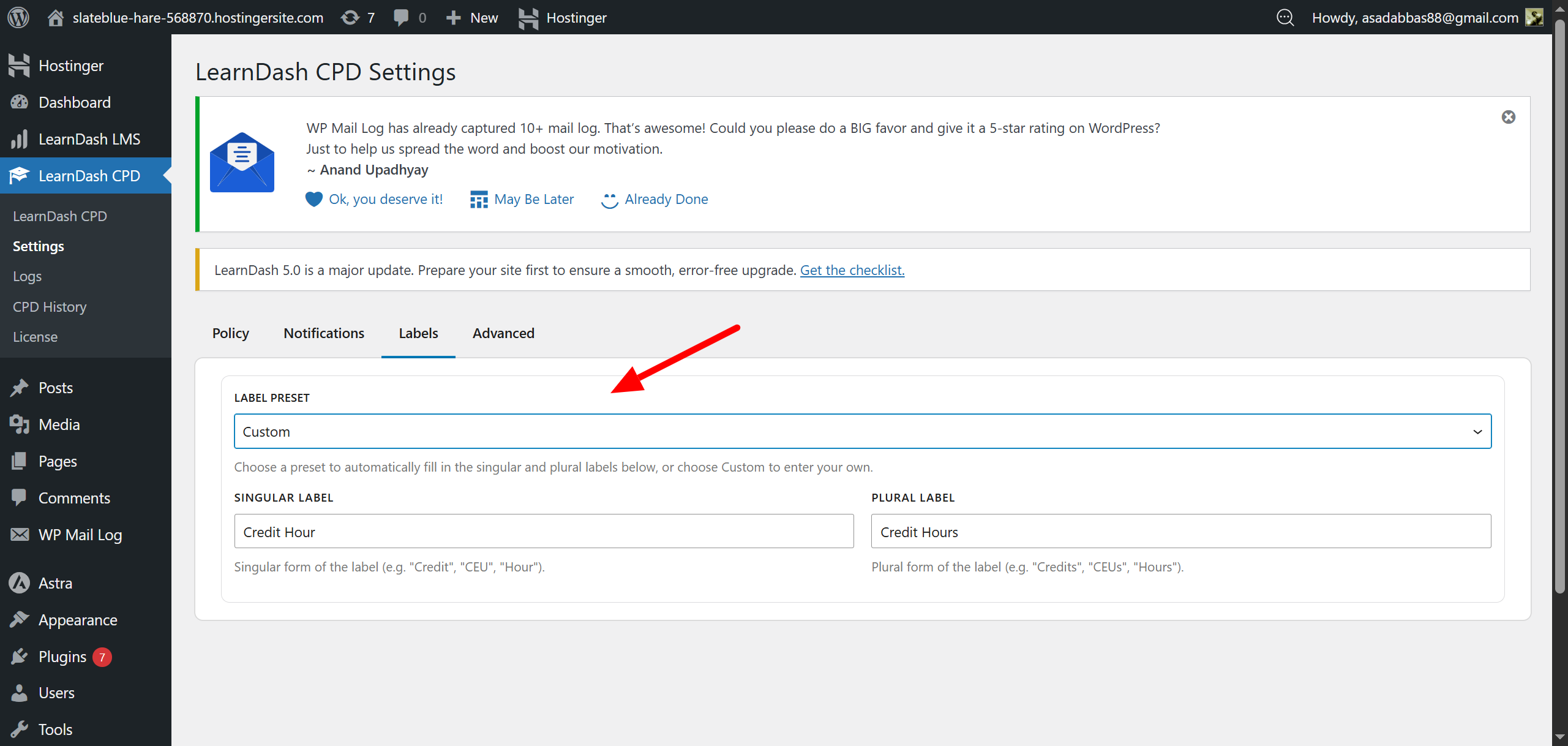
Label Settings
Label Preset
Select a preset to auto-fill the singular and plural credit labels. Options: Credits, CEUs, Hours, Points, Custom.
Custom
Choose Custom if you want to enter your own labels.
Singular Label
The single-unit name used in LearnDash (e.g., “Credit”, “CEU”, “Hour”).
Plural Label
The multi-unit name (e.g., “Credits”, “CEUs”, “Hours”).