















Seeing traffic in Google Analytics can make you feel like your store is being tracked properly. But traffic alone does not tell you whether people are actually moving toward a purchase.
You may have thousands of visits and still miss the real problem, as customers drop off after viewing a product, abandon the cart, or leave during checkout. That is why WooCommerce Google Analytics should do more than count visitors. It should show you
With the right GA4 setup, you can view the customer journey from first click to the final purchase. See which marketing channels bring actual buyers, and find the parts of your store where customers lose interest.
In this guide, we’ll cover the full setup, including GA4 connection, WooCommerce conversion tracking, ecommerce events, testing, reporting, and how to turn the data into practical store improvements.
What Should You Track in a WooCommerce Store?
Before installing anything, decide what you actually want to measure. For most stores, the useful journey looks something like this:
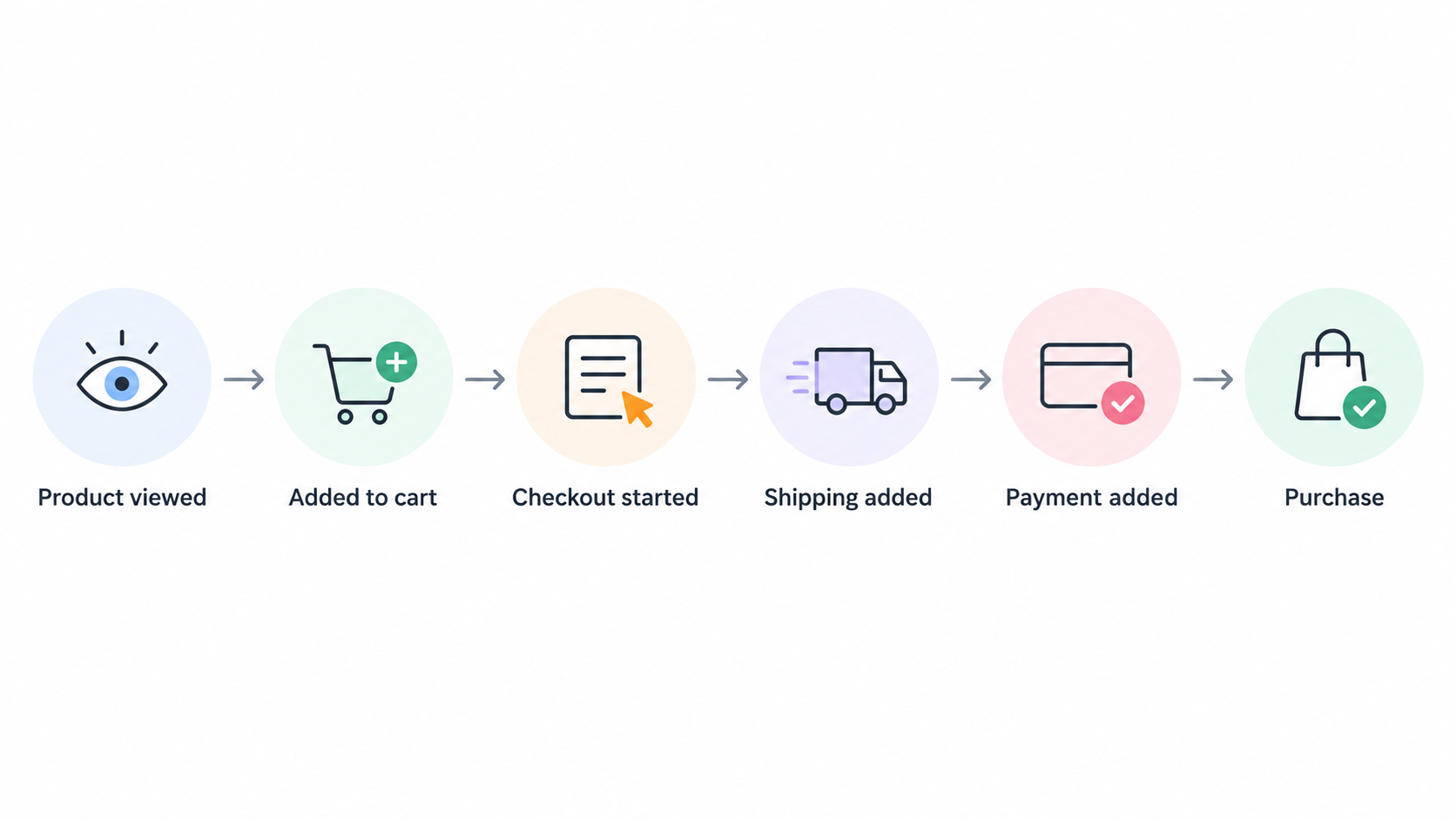
Google recommends ecommerce events for these actions, including view_item, add_to_cart, begin_checkout, add_shipping_info, add_payment_info, purchase, and refund.
A simple way to look at them is:
| GA4 Event | What It Tells You |
| view_item | Someone viewed a product |
| add_to_cart | The product created buying interest |
| begin_checkout | The customer moved beyond browsing |
| add_shipping_info | The customer progressed through checkout |
| add_payment_info | The customer reached the payment stage |
| purchase | The order was completed |
| refund | Revenue was later returned |
You do not need to track every possible click on your store. Start with the actions that explain whether a shopper is moving closer to buying.
Once these events are clear, the rest of your WooCommerce ecommerce tracking setup becomes much easier.
WooCommerce Analytics vs Google Analytics: What’s the Difference?
WooCommerce already has analytics, so it is fair to ask why you need GA4 as well. The two tools answer different questions.
WooCommerce Analytics
Use WooCommerce Analytics when you want to know:
- How many orders you received
- How much revenue you made
- Which products sold
- Which coupons customers used
- How much tax you collected
- Which orders were refunded
Google Analytics 4
Use GA4 when you want to understand:
- Where shoppers came from
- What they did before buying
- Which products they viewed
- Where they dropped out
- Which marketing channels brought revenue
- How different audiences behave
A simple way to remember it:
WooCommerce tells you what sold. GA4 helps explain how the customer got there. This is a key feature when you begin to invest in SEO, paid ads, email, or social media marketing.
To achieve such visibility, you must integrate WooCommerce with GA4 and ensure appropriate basic tracking is in place.
Setting Up WooCommerce Google Analytics
The setup follows a simple path:
Create GA4 → Connect WooCommerce → Enable ecommerce events → Test the data
Adding the Google Analytics code is not the most important part! You also have to send the e-commerce actions that really matter to your store.
Step 1: Create or Check Your GA4 Property
If you already have Google Analytics, make sure that your website is connected with a Google Analytics 4 property. If not, then you need to set up a property in Google Analytics and attach a web data stream to your store.
A Measurement ID of your web stream would be similar to the following one:
G-XXXXXXXXXX
This ID would be used while setting up the integration with WooCommerce. You would need this ID when you connect WooCommerce with Google Analytics.
Step 2: Choose How You Want to Connect WooCommerce to GA4
There are different methods for setting up Google Analytics with WooCommerce. The choice would depend on the level of control you have.
1. WooCommerce Google Analytics Integration
This is usually the easiest starting point. It works well when you mainly want standard WooCommerce e-commerce tracking without building a highly customized implementation.
2. Analytics Plugin
Some WordPress analytics plugins handle much of the setup for you and may also bring reports into WordPress. This can be useful if you would rather avoid working directly inside Google Tag Manager.
3. Google Tag Manager
Google Tag Manager gives you more control. It becomes useful when you need:
- Custom events
- Multiple marketing tags
- Custom checkout tracking
- Advanced ecommerce tracking
- Tracking across several tools
For a standard store, start simple. You can always move to a more advanced setup later if your business needs it.
Step 3: Connect WooCommerce to Google Analytics 4
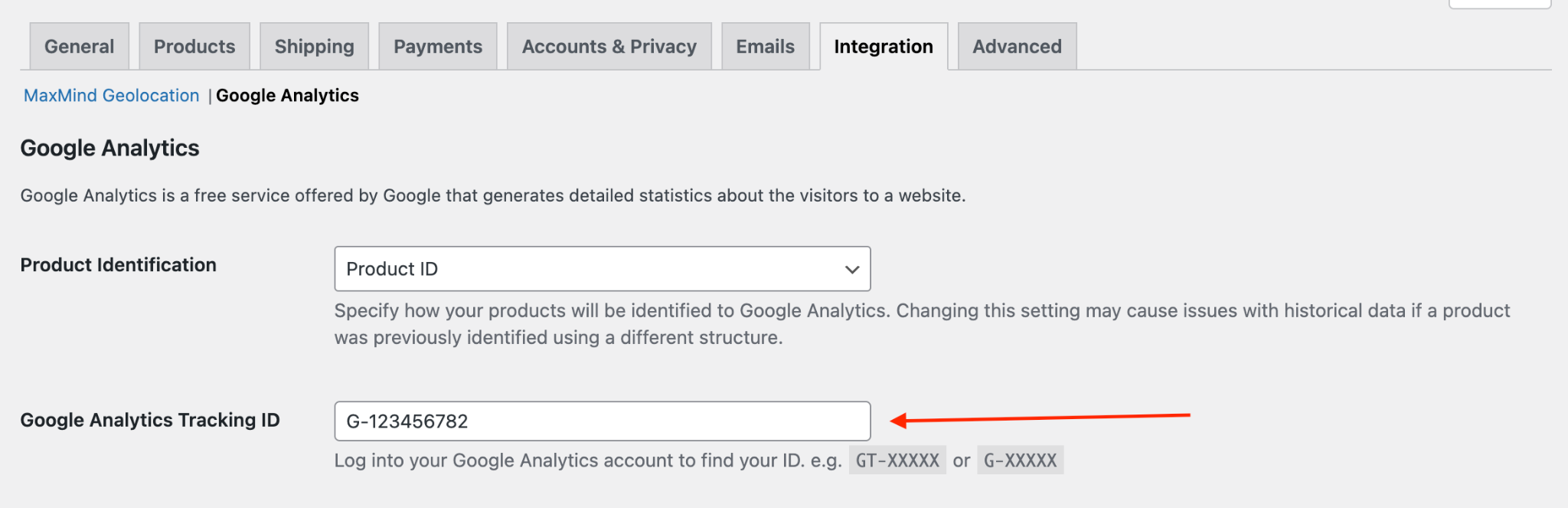
For a straightforward setup, install and activate the Google Analytics integration for WooCommerce.
Then go to:
WooCommerce → Settings → Integration → Google Analytics
Enter your GA4 Measurement ID beginning with G-.
Save the settings. This connects your store to the GA4 property. But connecting GA4 is only the first part. Now you need to make sure the customer actions you care about are actually being tracked.
Step 4: Enable the Ecommerce Events You Need
Your store should send events that match the real buying journey.
Useful events include:
- Product views
- Add to cart
- Remove from cart
- Checkout start
- Shipping information
- Payment information
- Purchase
- Refund
Google Analytics does not automatically understand every ecommerce action just because GA4 is installed. Your WooCommerce integration, plugin, or tag setup needs to send those events.
So you can technically have GA4 connected and still have weak ecommerce data if you are only recording page views.
Step 5: Test Your WooCommerce GA4 Tracking
Before relying on the numbers, test the complete setup.
GA4 Realtime
Use Realtime to confirm that your store is sending activity to GA4. It is a quick first check.
GA4 DebugView
DebugView lets you inspect events while you test the store. This is useful for checking whether events such as add_to_cart, begin_checkout, and purchase appear when expected.
Google Tag Assistant
Tag Assistant can help you check whether Google tags fire correctly as you move through the store. Run a complete test journey:
View product → Add to cart → Start checkout → Add shipping → Add payment → Complete purchase
Do not stop after confirming that your homepage sends page views. For ecommerce, the buying actions matter much more.
Now that your GA4 setup is connected and tested, the next step is understanding what those events actually tell you about the buying journey.
WooCommerce Conversion Tracking
WooCommerce conversion tracking tells you how customers moved toward a purchase. That is where the data starts becoming useful for store optimization.
The easiest way to read that journey is as a funnel, where each step shows how many shoppers move closer to a purchase and where others drop off.
Understand the WooCommerce Conversion Funnel
Looking only at total sales can hide where customers are dropping out.
Imagine your store gets:
1,000 product views
↓
250 add to carts
↓
150 checkout starts
↓
90 purchases
From this example:
- Product view → cart rate = 25%
- Cart → checkout rate = 60%
- Checkout → purchase rate = 60%
- Product view → purchase rate = 9%
These are example numbers, not industry benchmarks. The point is to see where the biggest drop happens. If lots of people view products but few add them to cart, the product page may deserve attention.
Shoppers add products to the cart but do not begin checkout, look at things such as shipping visibility, cart design, and the offer itself. If customers reach checkout but do not buy, payment options, form friction, technical errors, or trust may be worth checking.
Cart abandonment itself is common across ecommerce. Baymard’s ongoing research has historically found average documented cart-abandonment rates around the 70% range. But your own store data matters more than an industry average.
The funnel tells you where to investigate. It does not automatically tell you the exact reason customers left.
Mark Important GA4 Events as Key Events
GA4 uses Key events for actions that are especially important to your business. For an ecommerce store, purchase is usually the main one. Other events may still be useful, but they do not all carry the same business value.
For example:
Product view: useful behavior
Add to cart: strong buying signal
Purchase: actual business result
Keeping that difference clear makes your reporting easier to understand.
Check That Your WooCommerce Data Is Accurate
Tracking is only useful when the numbers are dependable. Before using GA4 to make store decisions, compare the data it receives with what actually happened inside WooCommerce.
Compare GA4 Purchases With WooCommerce Orders
After placing a test order, compare what appears in WooCommerce with what GA4 received.
Look at:
- Purchase event
- Transaction ID
- Revenue
- Currency
- Product name
- Quantity
You should not expect WooCommerce and GA4 to match perfectly every day. Consent choices, ad blockers, JavaScript failures, and tracking configuration can all create differences.
But if WooCommerce shows 100 orders and GA4 only shows 40 purchases, that is a gap worth investigating. WooCommerce should remain your source of truth for actual orders. GA4 is there to explain customer behavior and marketing performance.
Check Transaction ID, Revenue and Currency
Pay close attention to transaction data. If a purchase fires twice, your revenue can look higher than it really is. If the wrong currency is passed, your reports can also become misleading.
Your test purchase should therefore confirm:
Transaction ID → Revenue → Currency → Products → Quantity
Once that data looks right, you can start using GA4 for deeper analysis with more confidence.
Use WooCommerce Google Analytics Data to Improve Your Store
The useful part of installing WooCommerce Google Analytics is understanding what to improve. Otherwise, you are just collecting numbers.
Where to Find Ecommerce Data in GA4
Once GA4 starts receiving ecommerce events, a few areas become especially useful.
Ecommerce Purchases
Use this report to look at product-level ecommerce activity. You can see which products attract interest and which ones generate purchases.
Traffic Acquisition
Use this report to understand where visitors come from.
Typical channels include:
- Organic Search
- Paid Search
- Social
- Referral
- Direct
Funnel Exploration
Use Funnel Exploration when you want to compare different stages of the buying journey.
For example:
Product View → Add to Cart → Checkout → Purchase
Realtime and DebugView
These are most useful for testing and validation rather than long-term performance analysis. Standard ecommerce reports can take time to populate, so do not assume something is broken simply because the data is not visible immediately after setup.
Turn GA4 Data Into Ecommerce Decisions
This is where WooCommerce Google Analytics starts earning its place in your workflow. Look for patterns, then decide where to investigate.
| Data Pattern | What It May Point To | What to Check |
| High product views, low add-to-cart | Product page friction | Price, images, copy, reviews |
| Strong add-to-cart, weak checkout starts | Cart friction | Shipping visibility, cart UX |
| Many checkout starts, few purchases | Checkout issue | Forms, payment methods, errors |
| High traffic, low revenue | Weak traffic quality | Targeting and channel mix |
| Product gets views but few purchases | Weak offer | Pricing, positioning, trust |
GA4 can tell you where performance drops. It cannot always tell you exactly why. You still need to look at your pages, customer feedback, pricing, usability, and offer.
Compare Revenue by Marketing Channel
Traffic alone does not tell you whether a marketing channel is working.
For example:
| Channel | Visits | Revenue |
| Social | 10,000 | $8,000 |
| Organic Search | 3,000 | $12,000 |
Social brings more than three times the traffic. Organic Search generates more revenue in this example. That does not automatically make Organic Search the better channel because campaign costs and customer value also matter.
But it does show why judging marketing only by clicks or sessions can be misleading.
Check Product-Level Performance
Product-level data can highlight products that attract attention but struggle to convert.
For example:
| Product | Views | Add to Carts | Purchases |
| Product A | 5,000 | 600 | 300 |
| Product B | 5,200 | 180 | 42 |
Both products receive similar traffic. But Product B generates far fewer buying actions.
That gives you a reason to inspect:
- Pricing
- Product copy
- Images
- Reviews
- Delivery information
- Product options
- Overall offer
Again, the data points you toward the problem. It does not replace the investigation.
Cookie Consent and GA4 Tracking
Privacy policies will also impact analytics. Users from countries such as the EEA, UK, and Switzerland might need the right way to handle consent before analytics tracking is allowed. Based on your configuration, you might need to use consent management or cookie banner solutions.
Consent can also explain why sometimes there will be a different number of purchases recorded by both WooCommerce and GA4. WooCommerce tracks the real purchase. GA4 tracks the activity of the customer that can be tracked.
Need Help With Your WooCommerce GA4 Setup?
A standard GA4 setup works well for many stores, but more complex WooCommerce setups can need extra work. If your store uses custom checkout logic, subscriptions, memberships, multiple systems, or business-specific events, standard tracking may not capture the full customer journey.
If you do not want to handle the setup yourself, TeknoFlair can provide a done-for-you WooCommerce GA4 setup, including configuration, testing, and troubleshooting.
For stores with more specific requirements, custom WooCommerce development can handle custom events, integrations, checkout logic, and tracking that needs to follow the way your store actually works.
FAQs
Is Google Analytics 4 Free for WooCommerce?
Yes. The GA4 service is free for all website and eCommerce tracking. However, you have to pay for the premium plugin or extension, as well as setup services from experts.
Is WooCommerce GA4 Ecommerce Event Tracking Automatic?
No. In order to track events such as add to cart, checkout, or purchase in GA4, you need some integration between GA4 and WooCommerce.
How to Track WooCommerce Orders in GA4?
Your setup needs to send a purchase event when an order is completed. This event must include the transaction ID, total cost, currency, and products.
Why Is GA4 Revenue Different From WooCommerce Revenue?
Differences can happen because of:
- Cookie consent
- Ad blockers
- JavaScript failures
- Tracking configuration
- Duplicate events
- Users who cannot be measured by GA4
Use WooCommerce for actual order and accounting data. Use GA4 for customer behavior and marketing analysis.
Do I Need Google Tag Manager for WooCommerce?
Not necessarily. A standard WooCommerce store can often use an analytics integration or WordPress plugin. Google Tag Manager becomes more useful when you need custom events, multiple marketing tags, or greater control over the implementation.
How Long Does GA4 Ecommerce Data Take to Appear?
Realtime and DebugView can help you test activity quickly. Standard e-commerce reports may take longer to populate, so allow time before deciding that a new setup is not working.
