















Go to: WordPress Admin → LearnDash CPD → Logs
This page provides a detailed audit trail for all CPD-related system events. Logs are divided into three tabs:
- Reset Events
- Certificate Emails
- Outstanding Notifications
Reset Events
Click the Reset Events tab at the top.
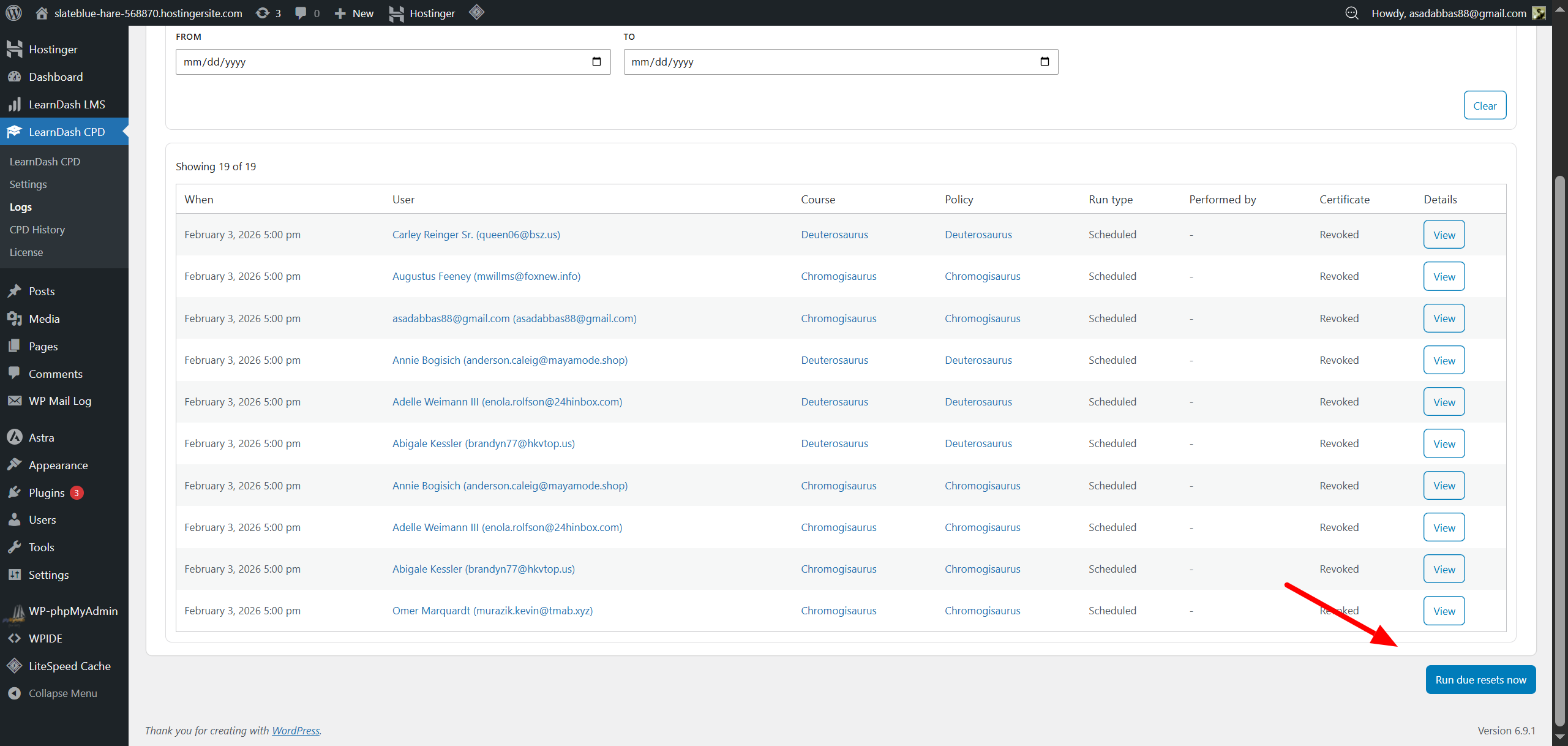
This area shows every course reset carried out by the system.
Apply Filters (Optional)
You can filter reset logs using:
- User – filter logs for a specific learner
- Course – filter by a single course
- Run Type – choose: Scheduled / Manual / System
- From / To Date – limit results to a specific date range
Filters can be combined to narrow down results.
You can also export these logs as a CSV file for external analysis or record-keeping.
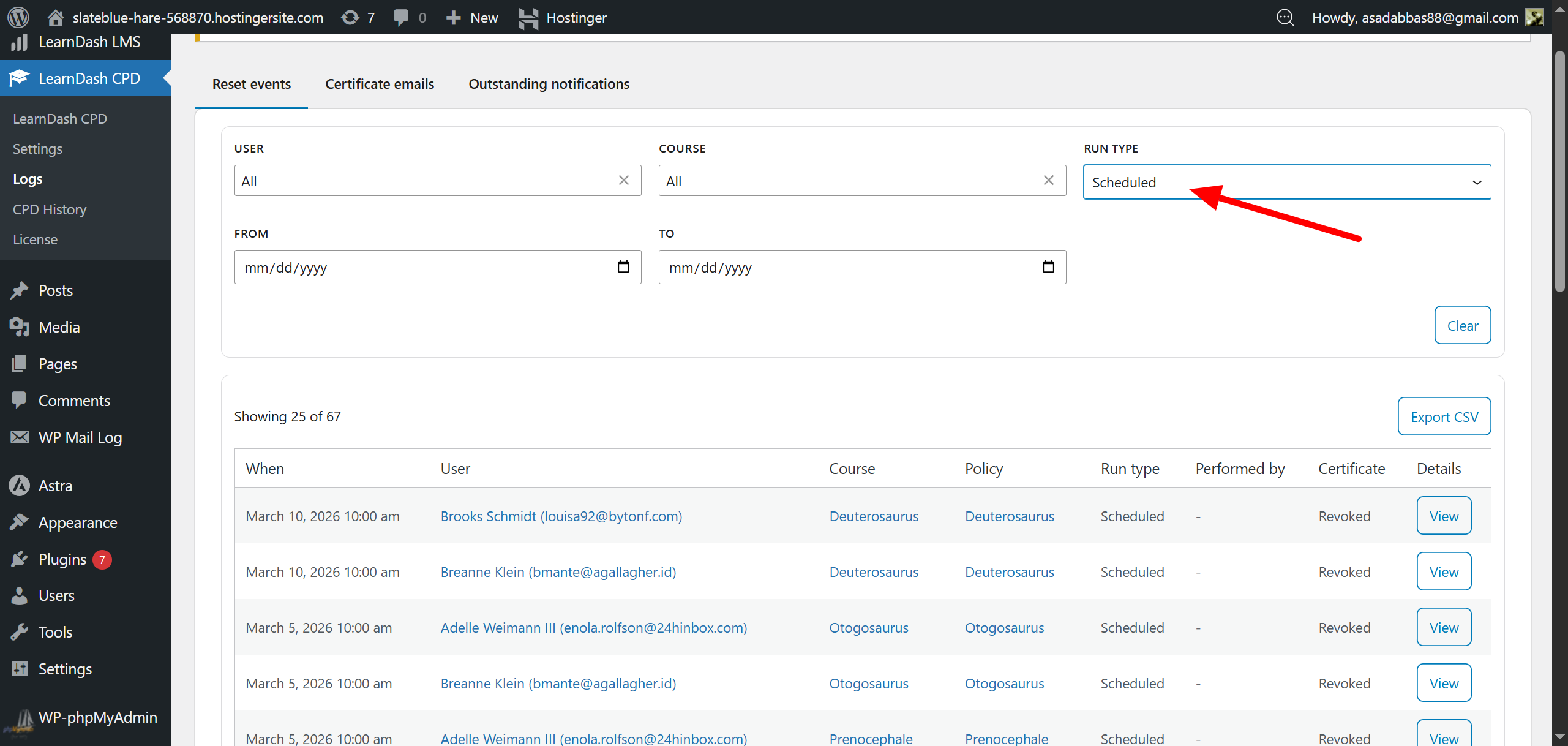
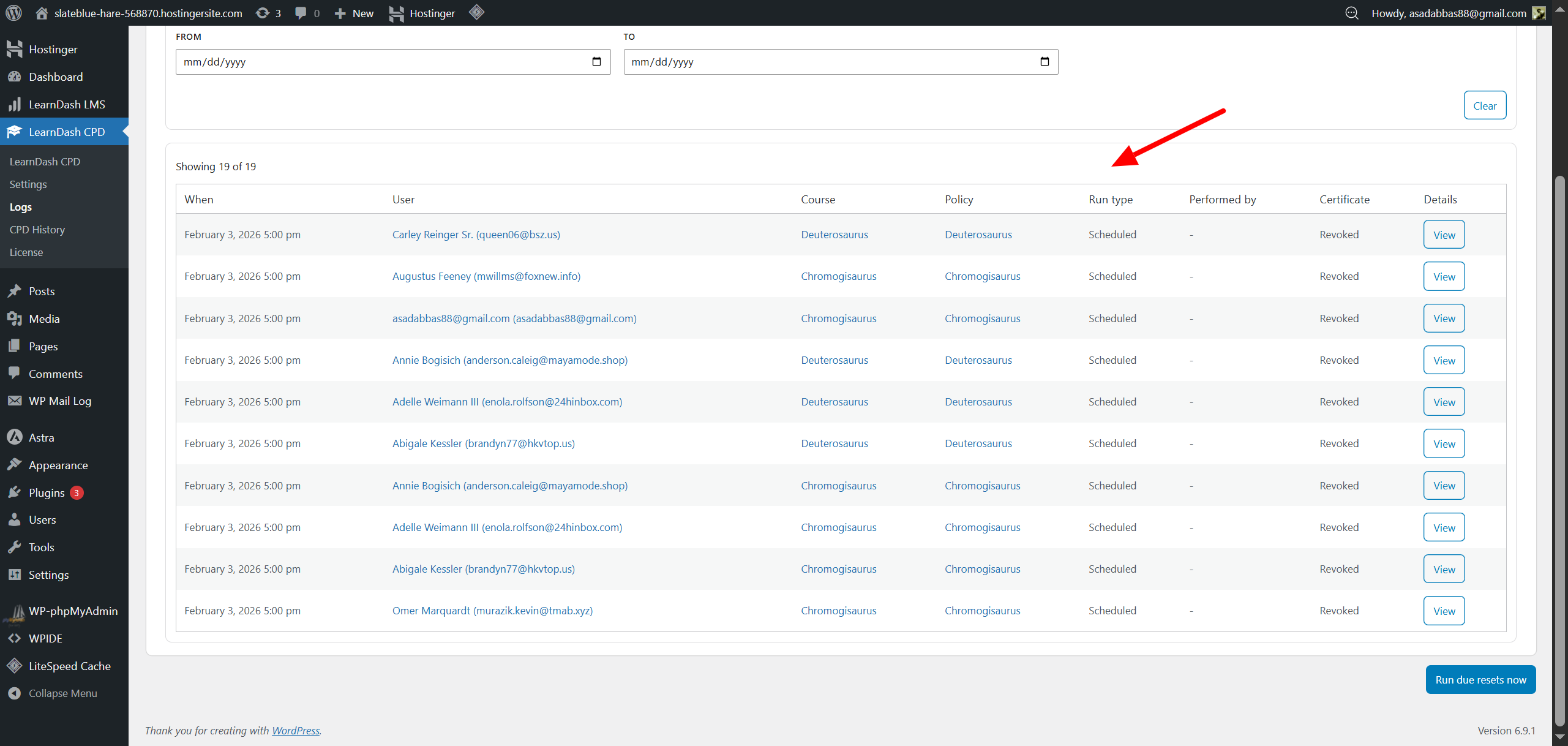
Log Table Columns
Each reset event appears in a table with the following columns:
| Column | Description |
|---|---|
| When | Timestamp of the reset event |
| User | Learner whose course was reset |
| Course | The affected course |
| Policy | Indicates which policy applied (Global / Group / Course) |
| Run Type | How the reset was triggered: Scheduled (WP-Cron), Manual (admin-triggered), System (internal trigger) |
| Performed By | Shows the admin user for manual resets; empty for scheduled/system resets |
| Certificate | Shows whether a certificate was revoked |
| Details | Button to view the full event data |
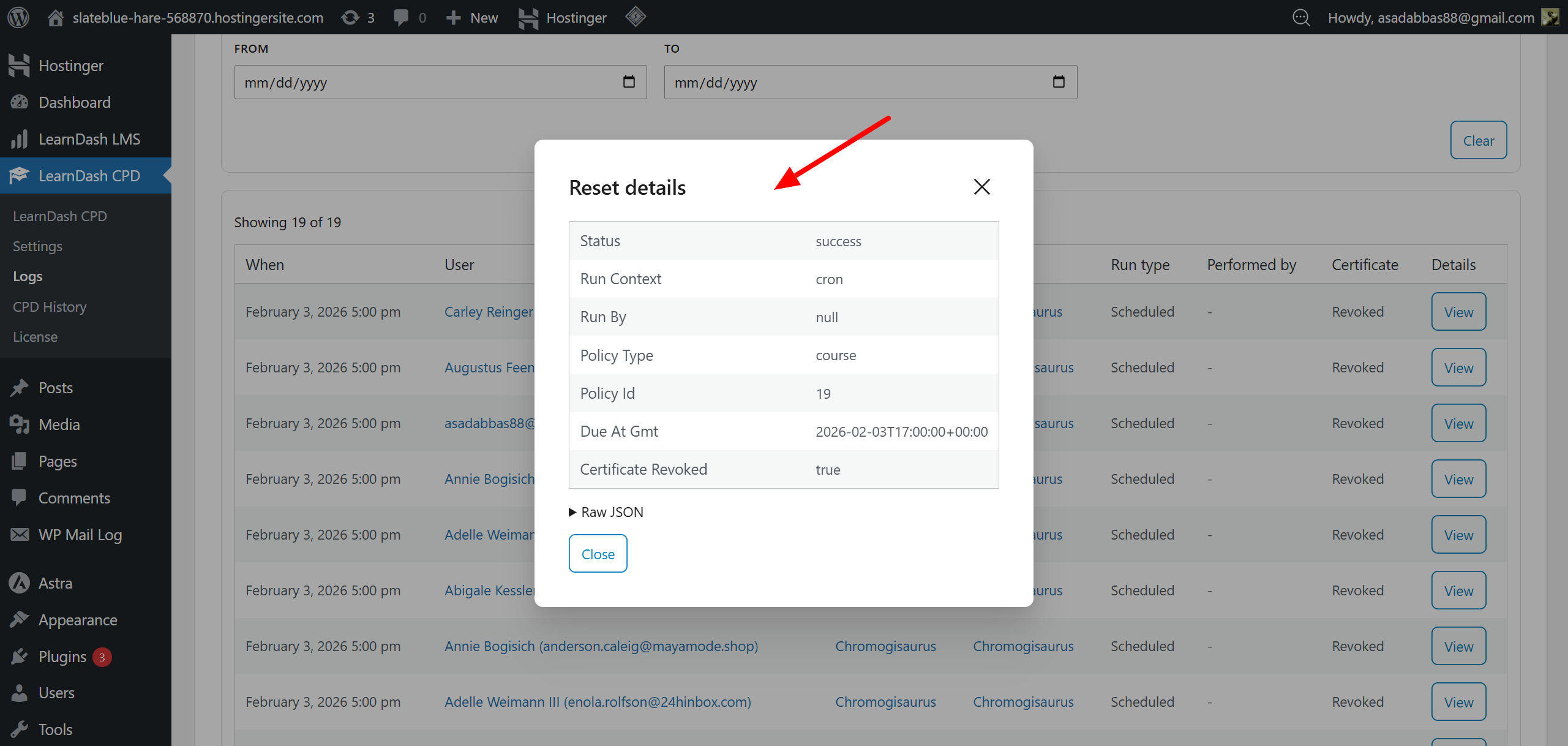
Clicking Details opens a modal with structured information such as:
Status: success
Run Context: cron
Run By: null
Policy Type: course
Policy ID: 19
Due At GMT: 2026-02-03T17:00:00+00:00
Certificate Revoked: true
This modal reflects the exact data stored in the system.
Run Due Resets Manually
At the bottom-right of the page, you will see:
Run due resets now
Click this button to process any resets that are currently overdue.
Example: If a learner’s reset was supposed to run 1 hour ago, clicking this button triggers it immediately.
All manually triggered resets will also appear in the log table.
Certificate Emails
Click the Certificate Emails tab at the top of the Logs page. This area records every certificate-related email event generated by the system.
This log helps admins verify whether emails were sent, failed, queued, or skipped.
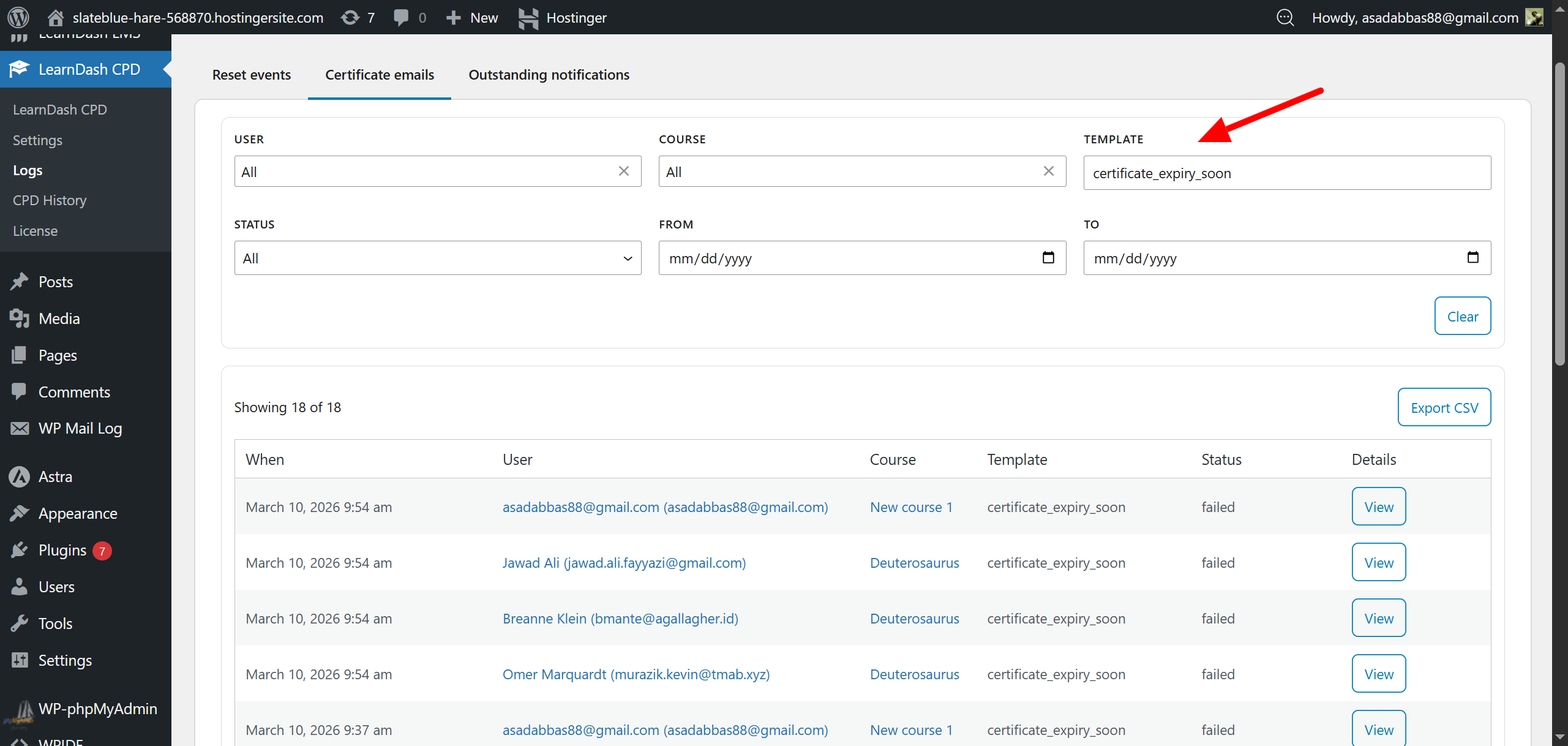
Apply Filters (Optional)
The Certificate Emails tab includes filters similar to Reset Events:
- User – filter logs by specific learner
- Course – narrow results to a single course
- Template – choose the email template, e.g.,
certificate_expiry_soon, etc. - Status – filter by delivery status
- From / To Date – limit entries to a specific time range
All filters can be combined for precise auditing.
You can also export these logs as a CSV file for external analysis or record-keeping.
Log Table Columns
Each email event appears with these columns:
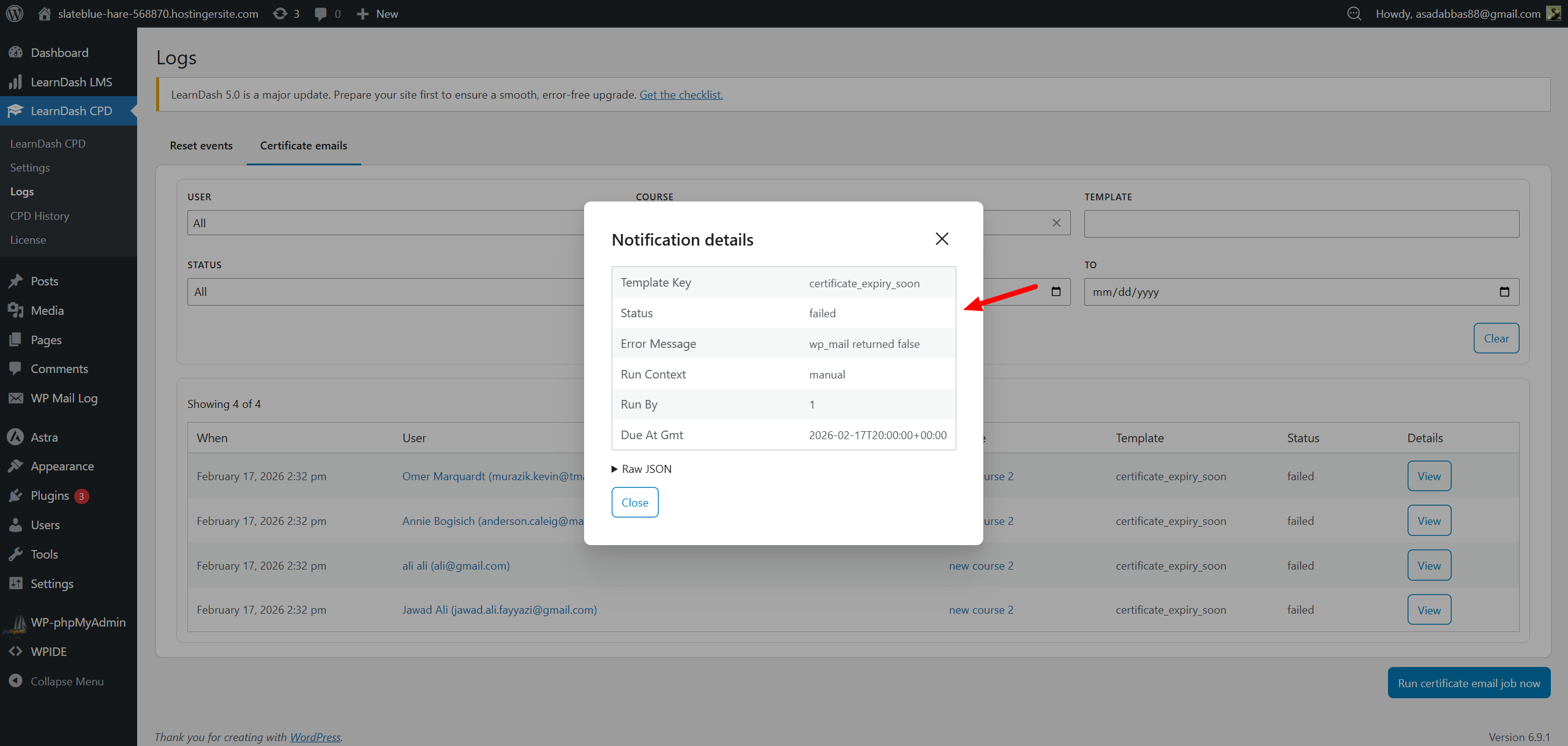
| Column | Description |
|---|---|
| When | Date and time the system processed the event |
| User | The learner the email belongs to |
| Course | Course associated with the certificate email |
| Template | Which email template was used |
| Status | Delivery result |
| Details | Opens a modal with email job data for debugging or audit use |
Run Certificate Email Jobs Now
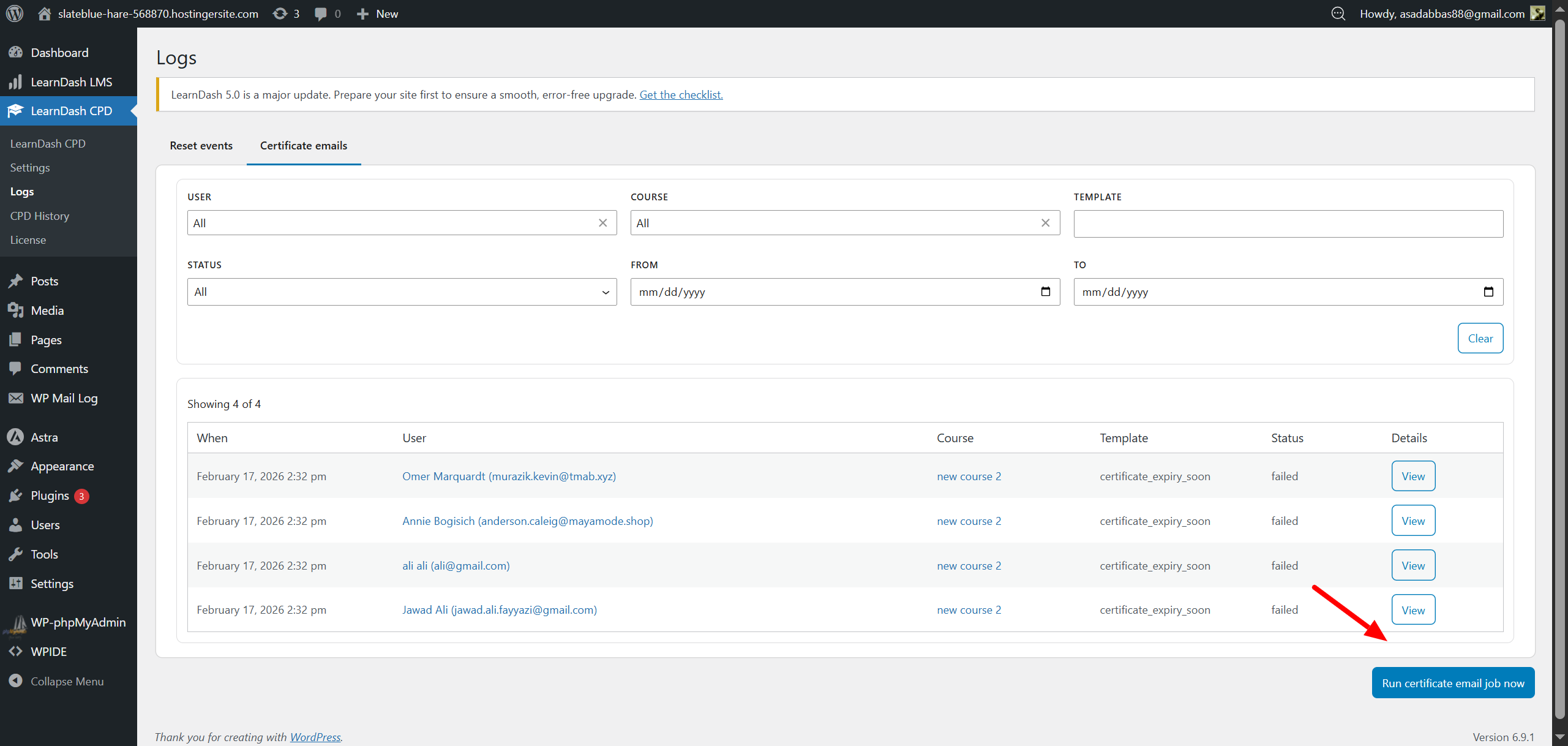
At the bottom-right of the Certificate Emails tab, you will see Run due certificate emails now button.
Clicking this button forces the system to immediately send any emails that are pending or overdue.
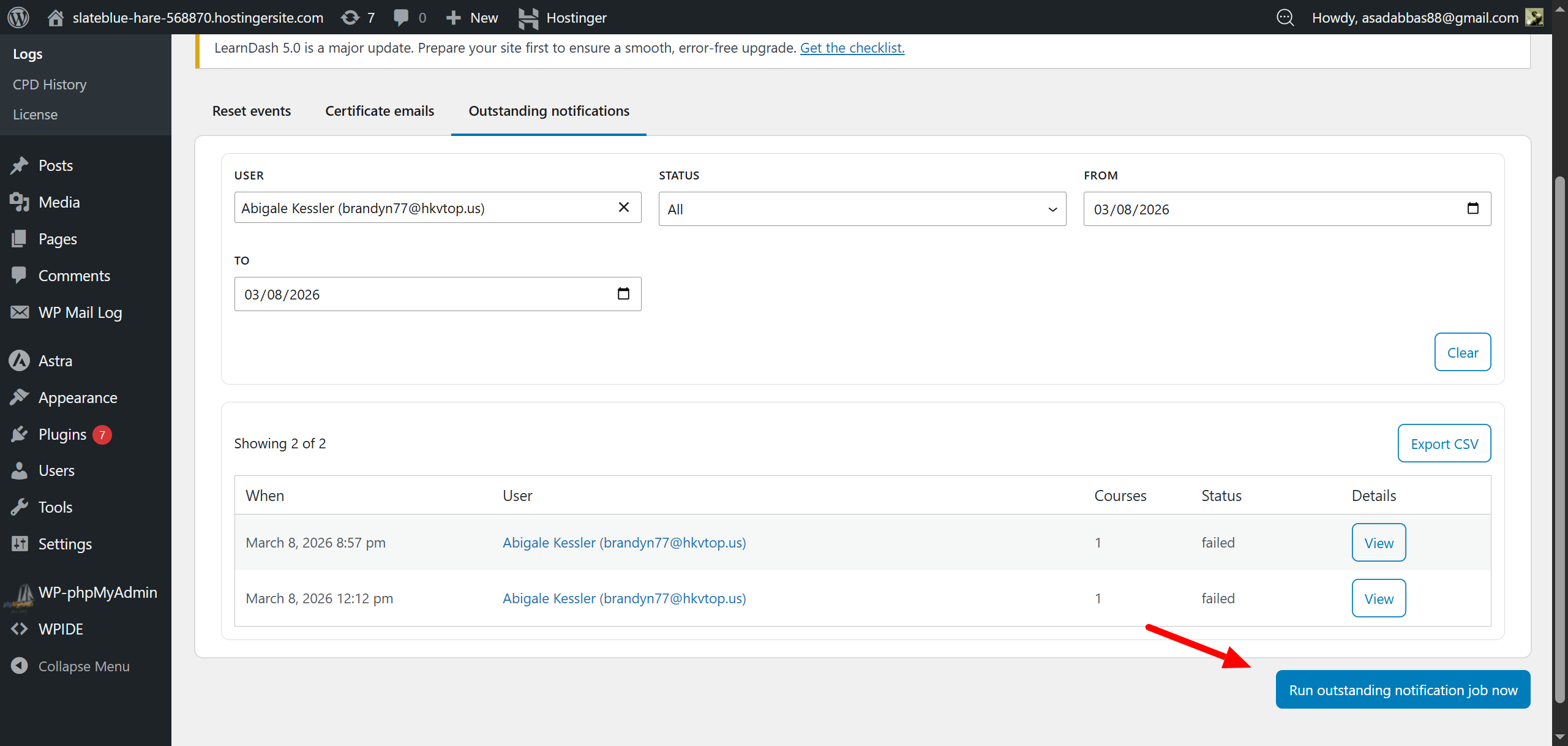
Outstanding Notifications
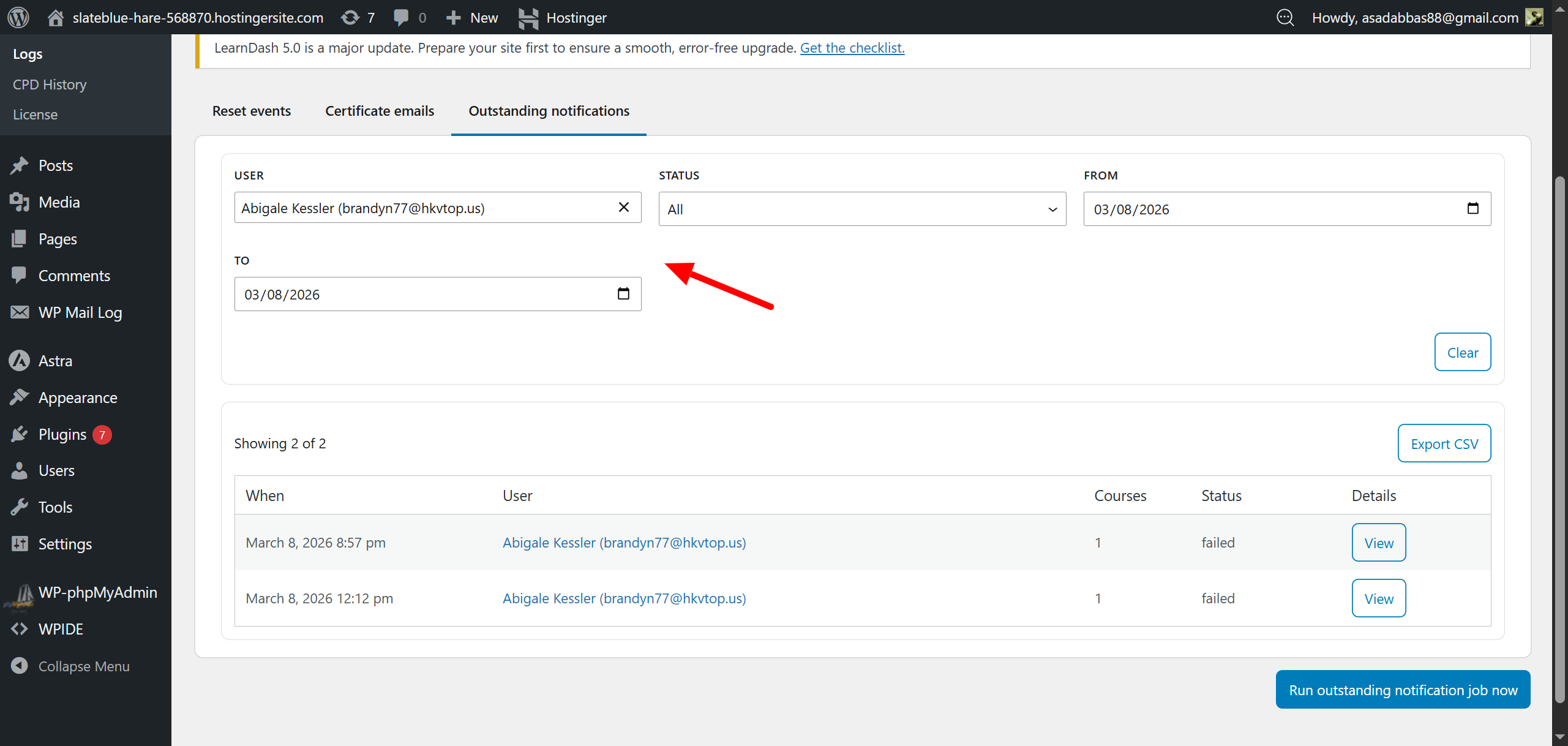
Apply Filters (Optional)
You can narrow down the log results using these filters:
- User – view notifications tied to a specific learner
- Status – choose from: All / Sent / Failed
- From / To Date – restrict results to a specific date range
All filters can be combined for precise auditing.
You can also export these logs as a CSV file for external analysis or record-keeping.
Log Table Columns
Each notification attempt is listed in a structured table with the following columns:
| Column | Description |
|---|---|
| When | Timestamp of the notification attempt |
| User | The learner associated with the notification |
| Courses | Courses included in the notification |
| Status | Delivery result (sent / failed) |
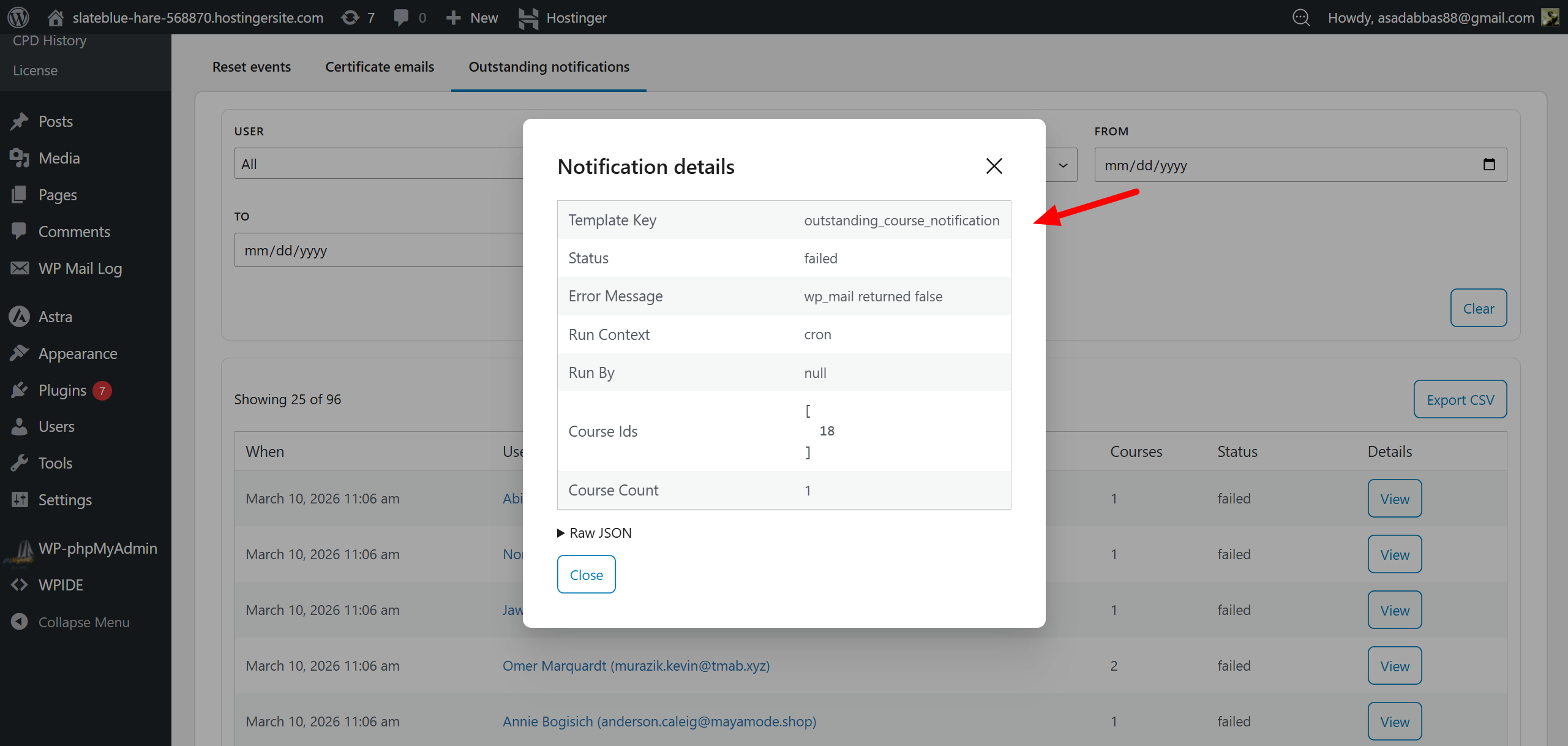
| Details | Opens a modal showing the full event data |
Run Outstanding Notification Jobs Manually
At the bottom-right of the page, you will see:
Run outstanding notification job now
Clicking this button immediately processes any outstanding notification jobs that are due or overdue.
All manually triggered jobs also appear in the log table for full audit transparency.