













Overview
Version 1.0.4 introduces a dedicated Integrations tab under Settings, consolidating all third-party connection points into one place. LD CPD currently supports three integration categories: WP Fusion (tag-based automation), native automation builders (Uncanny Automator and AutomatorWP), and a general-purpose Webhook system for any external endpoint.
Navigation: WordPress Admin → LearnDash CPD → Settings → Integrations
WP Fusion
What it does
WP Fusion integration allows you to automatically apply WP Fusion tags to learners when specific CPD events occur — for example, tagging a user as “CPD Certified” when they complete an activity, or assigning a course-specific tag when they enroll.
Prerequisite: The WP Fusion plugin must be installed and active. The tag pickers in this section are hidden when WP Fusion is not detected.
How to configure
- Navigate to Settings → Integrations.
- Scroll to the WP Fusion section.
- Locate the event type you want to configure (e.g.,
enrollment,completion,credits_earned). - Use the tag picker to select one or more WP Fusion tags that should be applied when that event fires.
- Repeat for any additional event types you want to map.
- Click Save Settings.
Wildcard mapping
In addition to per-event mappings, LD CPD supports a wildcard (*) entry. Any tags assigned to the wildcard row will be applied on every CPD event, regardless of type. This is useful for broad membership flags or LMS activity trackers.
Reference: event types available for tag mapping
| Event Type | Description |
|---|---|
enrollment | Learner is enrolled in a CPD course |
completion | Learner completes a CPD course |
course_reset | A learner’s CPD progress is reset |
credits_earned | CPD credits are awarded |
cert_email_triggered | A certificate email is dispatched |
claim_submitted | A CPD claim is submitted by the learner |
claim_approved | A submitted CPD claim is approved |
claim_rejected | A submitted CPD claim is rejected |
* (wildcard) | Fires on every CPD event |
Note: The tag list is populated directly from your WP Fusion settings. If a tag you expect is missing, verify it exists in your WP Fusion tag library.
Uncanny Automator
What it does
Uncanny Automator is supported as a native integration. LD CPD registers its triggers automatically when Uncanny Automator is active — no configuration is required inside LD CPD settings.
How to use
- Ensure the Uncanny Automator plugin is installed and active.
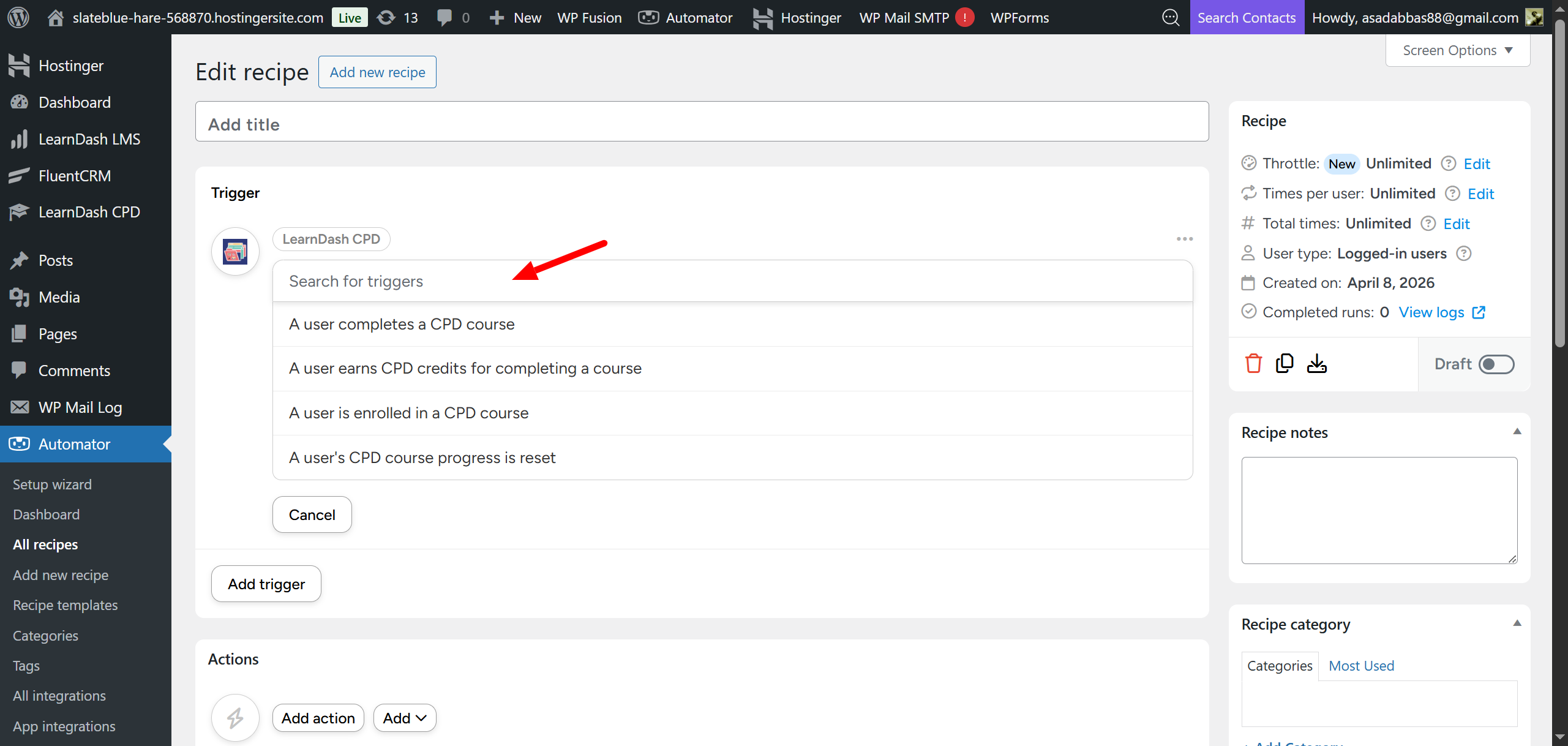
- Open the Uncanny Automator recipe builder (Automator → Recipes).
- Create a new recipe and click Add Trigger.
- Select LearnDash CPD from the integration list.
- Choose the desired trigger from the list below.
- Configure your actions as usual.
There are no LD CPD settings to configure for Uncanny Automator. The triggers appear in the recipe builder automatically.
Available triggers
| Trigger | Description |
|---|---|
LDCPD_ENROLLMENT | Fires when a learner is enrolled in a CPD course |
LDCPD_COMPLETION | Fires when a learner completes a CPD course |
LDCPD_RESET | Fires when a learner’s CPD progress is reset |
LDCPD_CREDITS_EARNED | Fires when CPD credits are awarded to a learner |
Available tokens
| Token | Available on |
|---|---|
| Course ID | All triggers |
| Course Title | All triggers |
| CPD Event Type | All triggers |
| Credits Earned | LDCPD_CREDITS_EARNED only |
AutomatorWP
What it does
AutomatorWP is also supported as a native integration, following the same zero-configuration model as Uncanny Automator. LD CPD registers its triggers in the AutomatorWP automation builder automatically when the plugin is active.
How to use
- Ensure the AutomatorWP plugin is installed and active.
- Open the AutomatorWP automation builder.
- Add a new trigger and select LearnDash CPD from the integration list.
- Choose the desired trigger.
- Configure your actions as usual.
As with Uncanny Automator, there are no LD CPD settings to configure. Triggers become available in the builder automatically.
Available triggers
| Trigger | Description |
|---|---|
ldcpd_enrollment | Fires when a learner is enrolled in a CPD course |
ldcpd_completion | Fires when a learner completes a CPD course |
ldcpd_reset | Fires when a learner’s CPD progress is reset |
ldcpd_credits_earned | Fires when CPD credits are awarded to a learner |
Available tags
| Tag | Available on |
|---|---|
| Course title, URL, and other standard course post tags | All triggers |
| Credits | ldcpd_credits_earned only |

Webhooks
What it does
The Webhook system lets you send an automatic notification to any external URL whenever a CPD event occurs. This is useful for connecting LD CPD to external tools, CRMs, or custom dashboards that are not covered by the integrations above — without writing any code.
How to add a webhook
- Navigate to Settings → Integrations.
- Scroll to the Webhooks section.
- Click Add More to create a new webhook card.
- Enter the destination URL in the URL field.
- (Optional) Enter a Secret Key. When provided, LD CPD will sign each request using HMAC-SHA256, allowing your endpoint to verify the payload is genuine. See Module 11 for technical details.
- Use the event checkboxes to select which CPD events should trigger this webhook. To receive all events, select the
*(all) option. - Use the enable/disable toggle to activate the webhook.
- Click Save Settings.
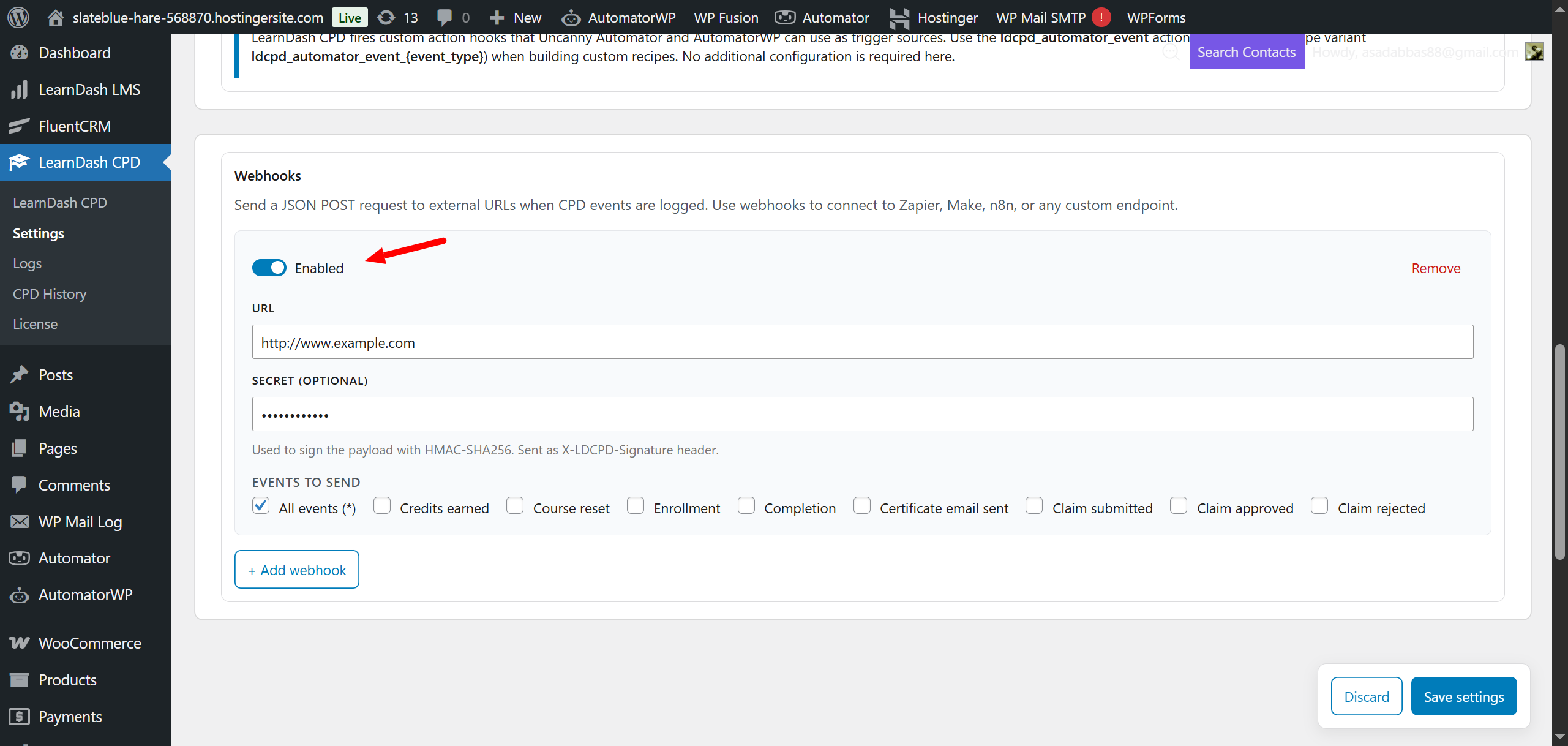
Managing multiple webhooks
Each webhook card is independent. You can add as many endpoints as needed using the Add More button. Each card has its own URL, secret key, event selection, and enable/disable toggle. To remove a webhook, delete its card and save.
Delivery failures
If a webhook delivery fails (for example, the destination URL is unreachable or returns an error), the failure is logged as a webhook_failed event in the CPD History log. Failed deliveries are not retried automatically. Check the History log if you suspect a webhook is not firing.