











Moving platforms feels risky, but staying on the wrong one can cost even more. Your website has been years of effort. It contains product pages, customer accounts, and search rankings that are still effective in driving sales.
That’s why it’s important to plan the move carefully. If migration is done poorly, it can result in lost products, SEO disadvantages and frustrated clients. But a structured Shopify to WooCommerce migration can offer a safe transfer of all products while providing more flexibility.
This guide walks you from planning your migration to preparing your new WooCommerce store before launch. Read On!
Why Businesses Move From Shopify to WooCommerce
Shopify is a great ecommerce platform for online stores that want minimal technical complications. But when stores expand, many companies start to seek increased flexibility. They require product setups, custom checkouts, SEO capabilities, or reduced recurring expenses.
This is where WooCommerce becomes an attractive option. Unlike Shopify, WooCommerce is built on WordPress, which means you have full control over your website, host, and functionality. Businesses can create a store that suits their requirements and does not fit the other platform.
Some of the most common reasons businesses choose a Shopify to WooCommerce migration include:
- Complete ownership of your site and customer information, with backup and future moves to other stores.
- More flexibility to customize to brand and enhance the shopping experience.
- Thousands of plugins and extensions to add new features and functionality as required.
- Improved URL, meta, redirect, schema and content control for SEO.
- Reduce long-term expenses by paying for tools that are used in your store.
- The option to select your hosting provider for speed, security, support, and growth.
- A new feature that makes custom development of checkout changes, product rules and integrations easier.
For growing ecommerce businesses, these advantages often outweigh the convenience of an all-in-one hosted platform.
What Can and Cannot Be Migrated?
The biggest misunderstanding is that all of the Shopify store content will automatically move to WooCommerce. That isn’t how migrations work.
There are some data that can be imported directly, and other portions of the store must be recreated or replaced. Knowing this ahead of time will make it easier to plan a realistic migration.
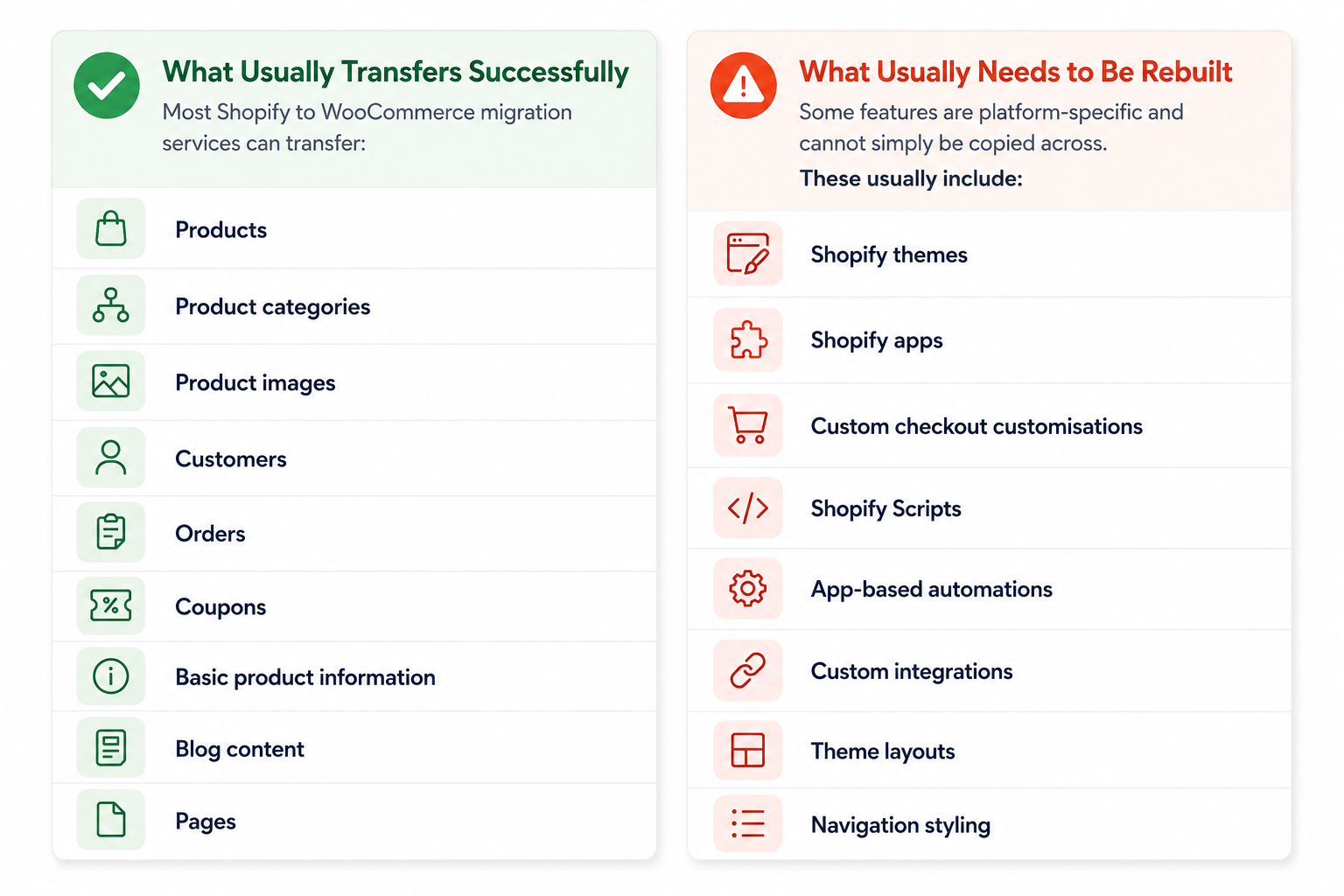
That’s why planning is as crucial as the data transfer itself.
Shopify to WooCommerce Migration Checklist
By following these steps in sequence, you can minimise loss of data and make the launch much smoother.
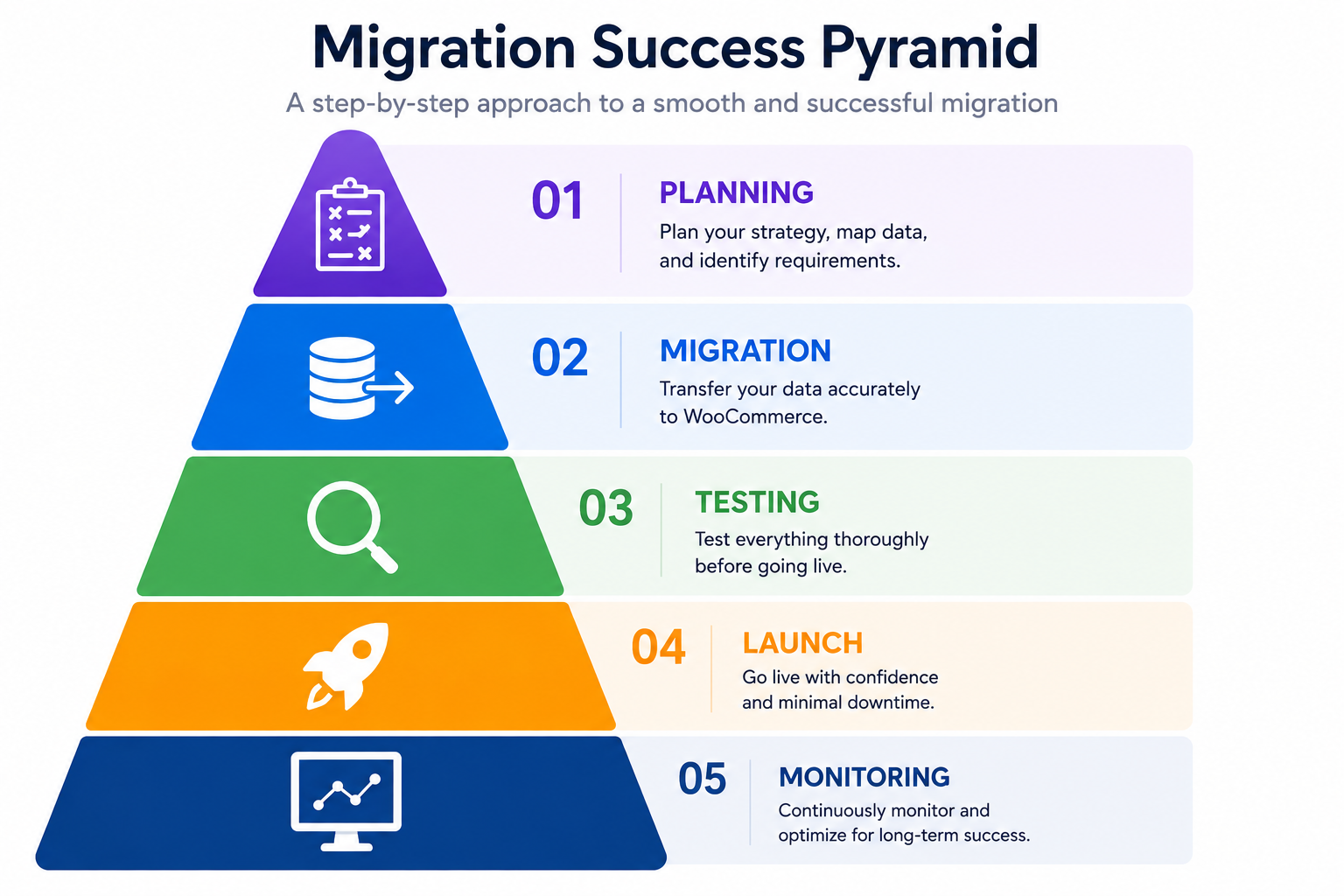
Let’s begin with the preparation phase.
Step 1. Audit Your Existing Shopify Store
Before you move any item, be sure you know what you have. At this point, many companies find unused apps, outdated products, duplicate pages and unnecessary content.
Migrating unnecessary data only increases the amount of work later. Review every important part of your store, including:
Products
- Active products
- Archived products
- Variations
- Inventory
- Images
- Digital products
Collections
Review how products are currently organised. Some collections may no longer be needed. Others may need restructuring inside WooCommerce.
Pages
Check pages such as:
- About Us
- Contact
- Shipping
- Returns
- Privacy Policy
- Terms
Blog
If your Shopify blog generates organic traffic, make sure every article is included in your migration plan. Blog content often represents years of SEO work.
Customers
Review customer accounts, purchase history, and subscriber lists. This information is valuable for future marketing campaigns.
Orders
Determine how much historical order data you want to migrate. Some businesses move every order. Others migrate only recent records.
Apps
Create a list of every Shopify app currently installed. Ask yourself:
- Is it still needed?
- Is there a WooCommerce alternative?
- Does the functionality require custom development?
Many businesses pay monthly for apps they rarely use. This is a good opportunity to simplify your technology stack.
Analytics
Review:
- Google Analytics
- Google Search Console
- Conversion tracking
- Facebook Pixel
- Google Ads
- Email marketing integrations
These services will also need to be reconnected after the migration.
Step 2. Back Up Everything Before You Start
One of the biggest migration mistakes is assuming everything will work the first time perfectly. Even experienced developers create backups before making major changes.
A full backup will provide you with peace of mind if something unexpected occurs. When working with a professional WooCommerce migration service, inquire about their backup process before the migration starts.
It should always be part of the project.
Step 3. Prepare Your WordPress and WooCommerce Store
Migration starts with preparing the new website. A properly configured WooCommerce store reduces migration problems later.
This preparation usually includes:
Choosing Reliable Hosting
Unlike Shopify, WooCommerce allows you to select your own hosting provider.
Look for hosting that offers:
- High uptime
- Fast page loading
- Daily backups
- SSL certificates
- Security monitoring
- Easy scalability
Good hosting becomes even more important as traffic grows.
Install WordPress
Before installing WooCommerce, make sure WordPress is properly configured.
Review:
- Permalink structure
- User roles
- Security settings
- Basic SEO settings
Getting these right now avoids unnecessary adjustments after launch.
Install WooCommerce
Next, install WooCommerce and complete the basic store setup.
Configure:
- Store location
- Currency
- Tax settings
- Shipping regions
- Payment methods
These settings should match your existing Shopify store wherever possible.
Install an Appropriate Theme
Remember that Shopify themes cannot be imported directly. Your WooCommerce store will need its own theme.
Choose one that supports:
- Mobile responsiveness
- Fast loading
- WooCommerce compatibility
- Flexible customisation
- Regular updates
Some businesses recreate their existing Shopify design. Others use the migration as an opportunity to refresh their brand.
Build on a Staging Website
Never perform a migration on a live production website. Instead, create a staging environment where everything can be tested safely.
A staging website allows you to:
- Import products
- Test checkout
- Fix layout issues
- Review mobile responsiveness
- Test plugins
- Identify errors
Once everything works correctly, you can launch the new store with much less risk.
Step 4. Choose the Right Shopify to WooCommerce Migration Method
Not every business should migrate in the same way. The right method depends on the size of your store, technical experience, available budget, and business goals.
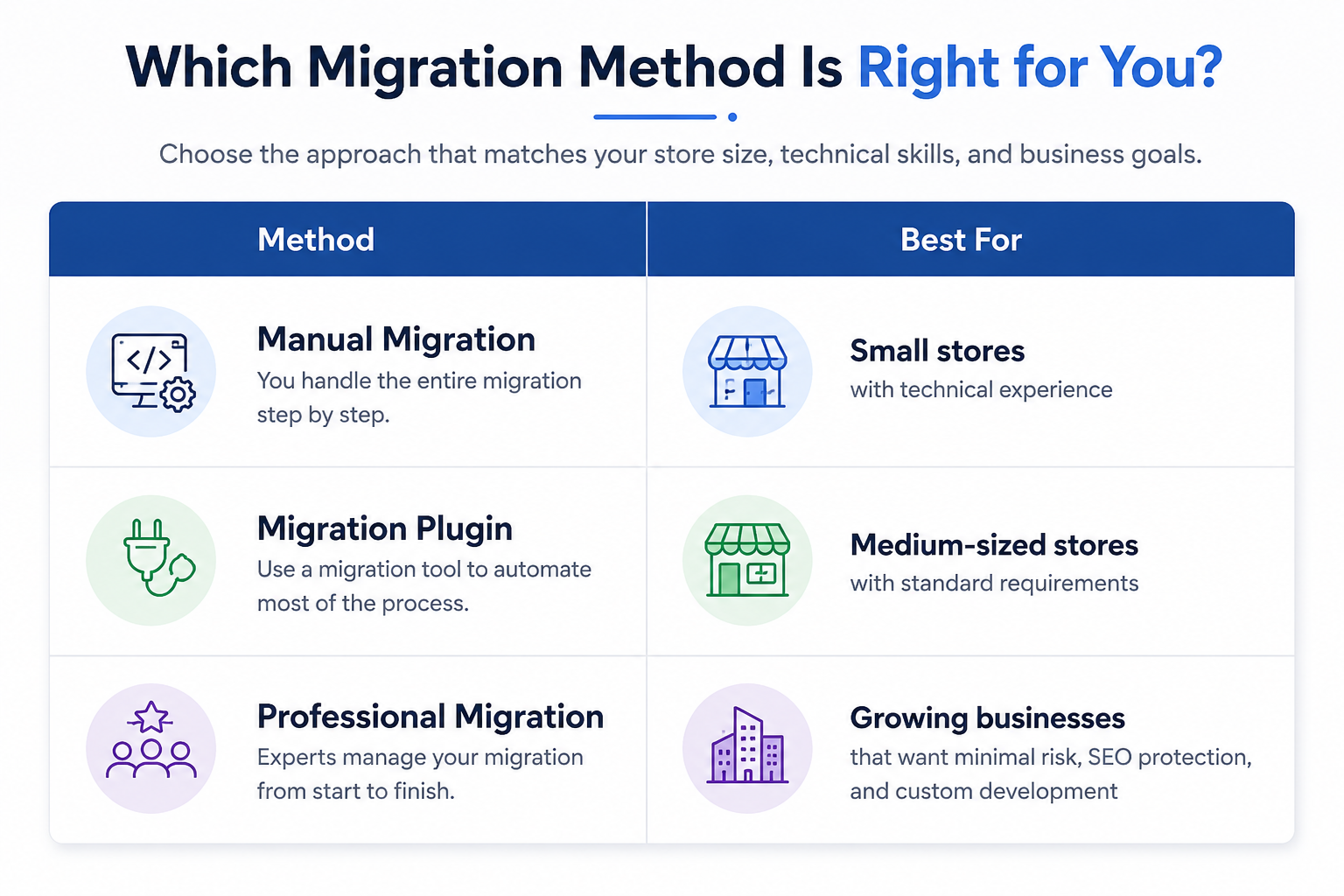
Manual Migration
This involves exporting data from Shopify and importing it into WooCommerce yourself.
Advantages
- Lower upfront cost
- Full control
- Good for smaller stores
Challenges
- Time consuming
- Higher chance of errors
- Requires technical knowledge
- Manual testing
Migration Plugins
Several migration tools can automate much of the process.
They can import products, customers, categories, and orders more quickly than manual migration.
Advantages
- Faster migration
- Less manual work
- Suitable for medium-sized stores
Challenges
- Plugin limitations
- Some custom data may not migrate
- May require manual cleanup afterwards
Professional WooCommerce Migration Services
Larger businesses often choose professional migration services to reduce downtime and protect SEO.
A migration partner can help with:
- Data transfer
- Theme recreation
- App replacement
- SEO preservation
- Testing
- Performance optimisation
- Launch support
A migration partner will assist with data transfer, theme recreation, app replacement, testing, performance optimisation and launch support. You can contact TeknoFlair for Custom functions or integrations that are not synced from Shopify.
Step 5. Import Products, Customers, and Orders
After installing the new WooCommerce store, you can start transferring the primary store data. It’s one of the most critical phases in migration. There are no margins for error as it could impact inventory, pricing, customer accounts and order records.
Do not assume the import is correct just because it finishes successfully. Check a sample of products after the transfer. Confirm that titles, descriptions, prices, SKUs, images, stock levels, and variations appear correctly.
Product variations often need extra attention. A product with several sizes, colours, or materials can import differently depending on the migration tool. Customer and order data should also be reviewed carefully. Make sure names, email addresses, billing details, and order history match the original Shopify store.
Some customers may need to reset their passwords because encrypted Shopify passwords cannot usually be transferred directly to WordPress. Plan a clear email explaining how customers can access their new accounts.
Check Imported Data Before Moving Forward
Review at least:
- Ten simple products
- Ten variable products
- Recent customer accounts
- Recent orders
- Discount codes
- Product images
- Stock quantities
Finding a problem at this stage is much easier than discovering it after launch.
Step 6. Rebuild the Store Design in WooCommerce
A Shopify theme cannot simply be copied into WooCommerce. The design must be recreated using a WooCommerce-compatible theme, page builder, or custom development.
Start with the pages that have the greatest effect on sales:
- Homepage
- Shop page
- Product category pages
- Product pages
- Cart
- Checkout
- Customer account area
- Contact page
You do not need to copy every detail of the old store. A Shopify to WooCommerce migration is a good time to remove weak design elements, improve navigation, and make the customer journey easier. Look closely at how customers find products. Review menu labels, filters, search, category structure, and mobile navigation.
The product page should make key information easy to find. This may include pricing, delivery details, stock status, product options, returns, and customer reviews. The checkout also needs careful attention. Too many steps, unclear shipping costs, or unnecessary fields can reduce conversions.
Before approving the new design, compare it with the old store and ask:
- Is it easier to browse?
- Are important products easier to find?
- Is the mobile experience better?
- Does the checkout feel simple?
- Does the design still match the brand?
The goal is not only to recreate the Shopify store. It is to build a stronger WooCommerce version.
Step 7. Replace Shopify Apps With WooCommerce Tools
Most Shopify stores depend on apps for reviews, subscriptions, email marketing and other functions. Those apps will not move automatically.
Create a replacement plan before launch. For each Shopify app, write down:
- The app’s current purpose
- How important the feature still is
- The best WooCommerce replacement
- Any data that needs to move
- Any custom development required
A simple app replacement list may look like this:
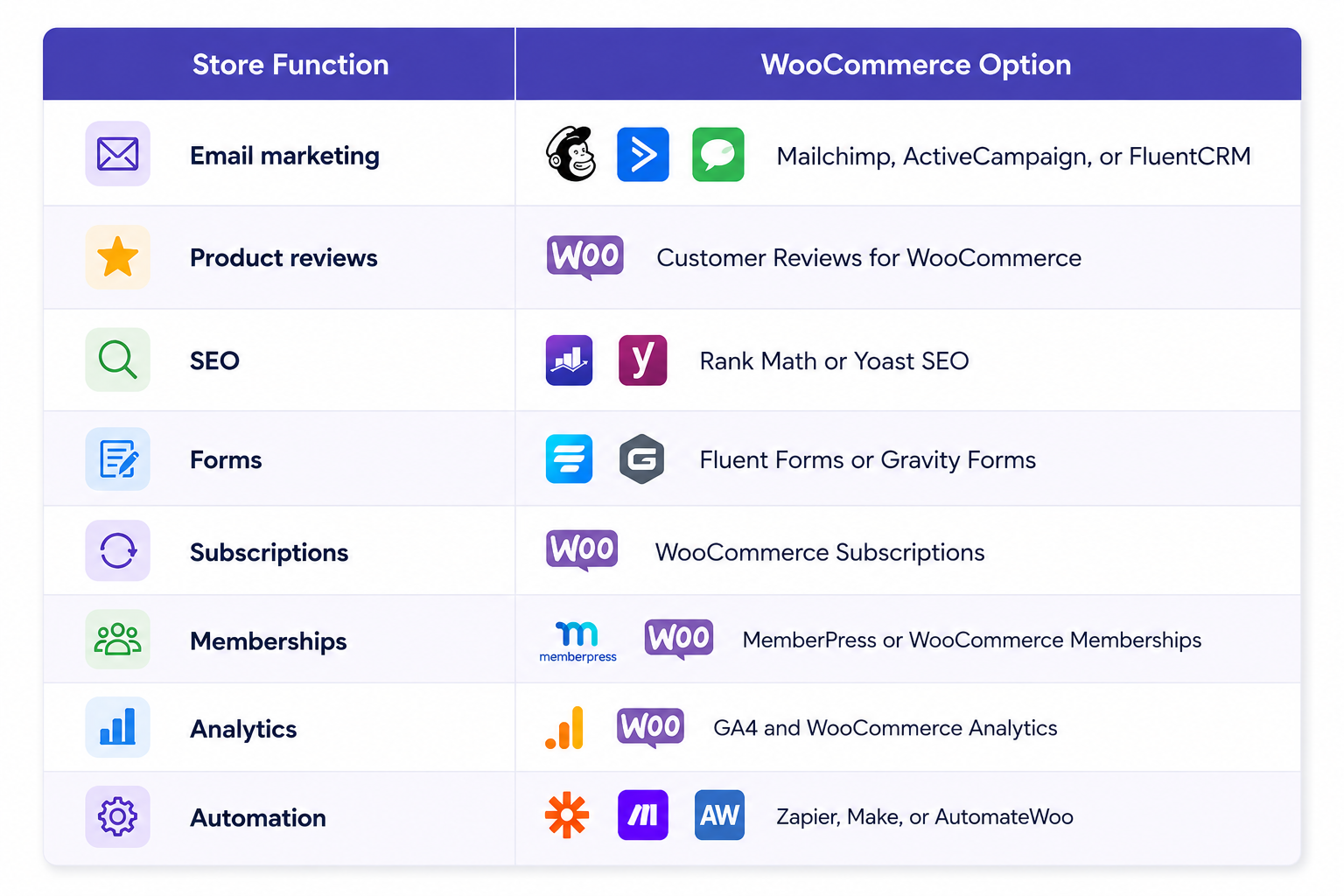
Do not install a plugin for every small feature. Too many plugins can make the store harder to manage and may affect performance. Choose reliable tools that are actively maintained and compatible with your hosting setup.
Step 8. Protect SEO During the Shopify to WooCommerce Migration
SEO should be planned before the migration starts. Shopify and WooCommerce use different URLs, so old links may stop working after the move. Create a list of your important Shopify URLs and match each one with the correct WooCommerce page. Then add a 301 redirect from the old URL to the new one.
Avoid sending every old link to the homepage. Each redirect should lead to the closest matching page. Redirect it to the most relevant replacement.
Also transfer or recreate:
- Meta titles
- Meta descriptions
- Heading structure
- Image alt text
- Internal links
- Canonical tags
- Structured data
Check whether any product or blog URLs are changing unnecessarily. Keeping the new structure close to the old one can reduce the amount of redirect work. After the store goes live, submit the new XML sitemap to Google Search Console. Monitor crawl errors, indexed pages, and ranking changes.
A temporary change in visibility can happen after a major Shopify to WooCommerce migration. However, careful redirects and accurate metadata can reduce the risk of a serious loss.
Step 9. Test the Store Before Launch
Never launch immediately after the data import and design are complete. Testing is what turns a finished-looking website into a working ecommerce store. Place test orders using different devices and payment methods.
Check:
- Product search
- Filters
- Product variations
- Cart updates
- Coupon codes
- Taxes
- Shipping rates
- Payment gateways
- Confirmation emails
- Customer login
- Password reset
- Refund process
- Mobile checkout
- Contact forms
Also test how the store behaves when something goes wrong.
What happens if a payment fails? Does the customer receive a clear message? Does the order remain in the correct status? Check speed on important pages. Large product images, heavy themes, and too many plugins can slow down WooCommerce.
Test the store on mobile phones, tablets, and desktop browsers. Mobile issues are easy to miss when the store is built mainly on a large screen.
Ask someone who was not involved in the project to complete a purchase. A fresh user may notice unclear labels or confusing steps that the project team has overlooked.
Step 10. Launch and Monitor the New Store
Choose a quieter sales period for the final launch.Before changing the domain, take one final backup of both stores.
During launch:
- Put the Shopify store into maintenance mode if needed.
- Run the final data sync.
- Point the domain to the new hosting.
- Check the SSL certificate.
- Confirm that redirects are active.
- Place a live test order.
- Verify analytics and conversion tracking.
Keep the old Shopify store available privately for a short period. This gives the team a reference if any data needs checking.
The first few days after launch are critical. Monitor orders, payment failures, broken links and website speed. Compare performance with the old store. A lower conversion rate may point to a checkout, design, payment, or tracking issue.
Do not close the migration project the moment the site goes live. Post-launch monitoring is part of a complete Shopify migration checklist.
Should You Migrate Yourself or Hire a WooCommerce Developer?
A small store with standard products may be suitable for a manual migration or an automated tool. A more complex store usually carries greater risk. A professional migration can save time and reduce the risk of lost sales, broken workflows, and SEO damage.
| Area | DIY Migration | Professional Migration |
| Cost | Lower upfront | Higher upfront |
| Time | Requires internal time | Managed by specialists |
| SEO | Easy to overlook | Included in planning |
| Custom features | More difficult | Can be rebuilt |
| Testing | Team responsibility | Structured testing |
| Launch support | Limited | Available |
The right choice depends on the value of the store and the cost of something going wrong.
How TeknoFlair Supports a Smooth Migration
Moving from Shopify to WooCommerce should give your business more control, not create new problems. TeknoFlair can manage the migration from planning through launch. This may include store auditing, data transfer, WooCommerce Development, theme recreation, Shopify app replacement, SEO redirects, performance work, and checkout testing.
The team can also rebuild custom features and connect WooCommerce with payment, CRM, email, analytics, or fulfilment tools. This helps reduce manual work, protect existing traffic, and shorten the time your team spends fixing problems after launch.
Final Thoughts
Moving from Shopify to WooCommerce affects customer accounts, order history, SEO, design, apps, payments, and daily store operations. A structured Shopify to WooCommerce migration helps protect those parts of the business while giving you more freedom to customise and grow.
Take time to audit the old store, test the new one, and monitor performance after launch. When the migration is planned properly, WooCommerce can provide a more flexible foundation for the next stage of your ecommerce business.
