















Still opening your WooCommerce dashboard every time you need to check an order, update stock, or change a product? What if you could just ask an AI assistant to do it?
Now imagine simply asking:
Show me products that are running low on stock.
That is where WooCommerce MCP starts to get useful.
MCP can connect an AI assistant with your WooCommerce store. Instead of clicking through different screens for every task, you can ask the AI to find information or carry out supported actions for you.
But there’s a catch. This does not mean handing your entire store over to AI. What the assistant can see and change depends on the tools and permissions you give it.
In this guide, we’ll break down how MCP for WooCommerce works, what you can actually do with it, and how to set it up without getting lost in technical terms.
What Is WooCommerce MCP?
MCP stands for Model Context Protocol.
Sounds technical, right? The basic idea is much simpler. Think of MCP as a bridge between your AI assistant and your WooCommerce store.
Without that bridge, an AI assistant cannot automatically see your products, check an order, or make changes inside WooCommerce. Once you connect them correctly, the flow looks more like this:
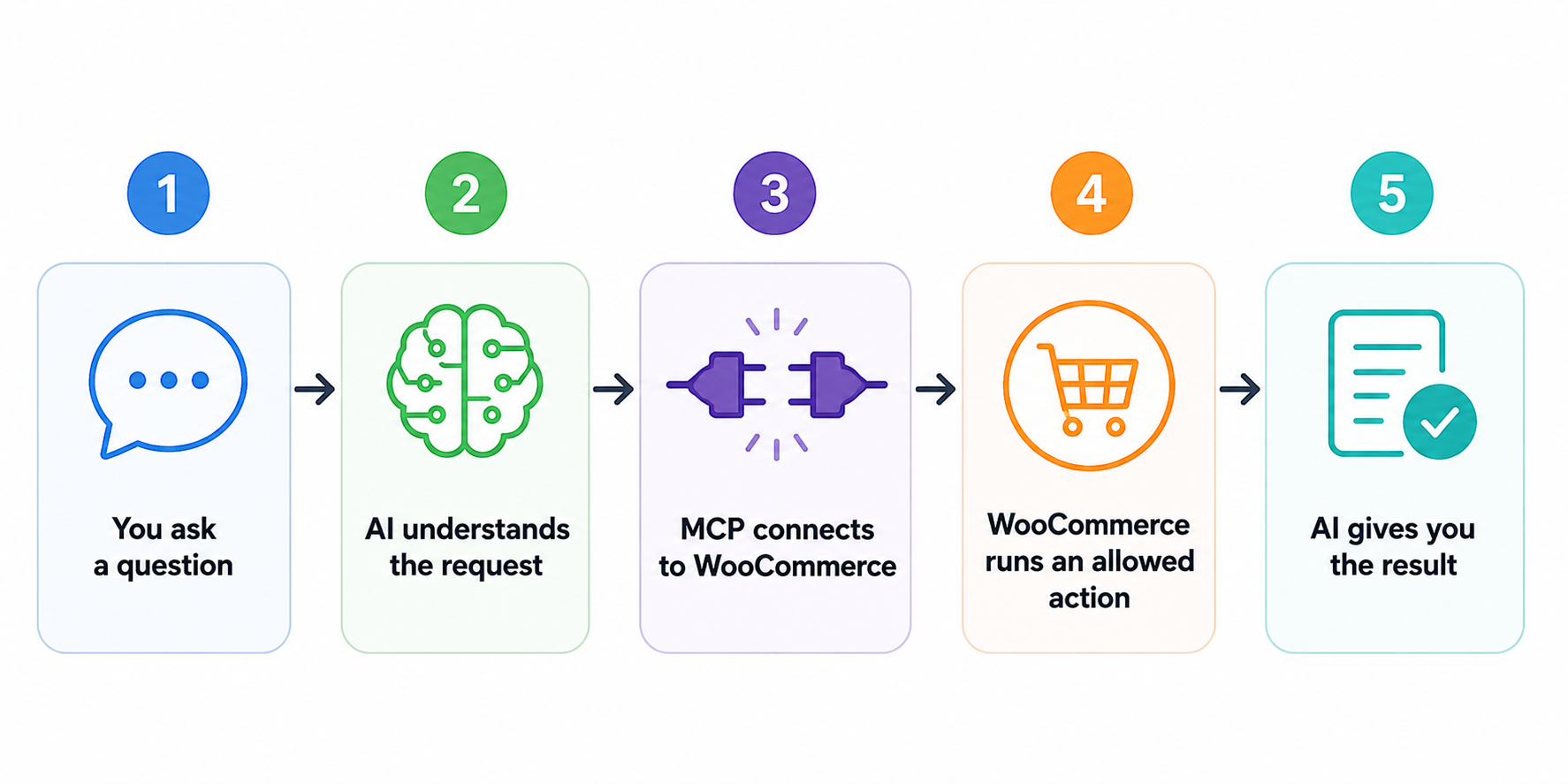
So instead of hunting through the dashboard, you can work in plain language.
The important word here is allowed. Your AI assistant does not automatically get access to everything. API permissions and enabled tools control what it can do. WooCommerce’s MCP extension, for example, lets you switch groups of tools on or off and create keys with Read, Write, or Read/Write permissions.
What Can You Actually Do With WooCommerce MCP?
Here’s where the idea becomes practical.
The exact actions available depend on whether you use WooCommerce’s native MCP capabilities, the MCP extension, or your own custom setup.
WooCommerce’s current native abilities focus first on common product and order operations. The separate MCP for WooCommerce extension can go further, with tools for customers, coupons, refunds, tax, shipping, reports, webhooks, and more.
For a store owner, that can translate into everyday tasks like these.
1. Find Products Without Digging Through Your Catalogue
Imagine you manage hundreds or thousands of products. Instead of opening Products, applying filters, and going through the list, you could ask your AI assistant for the information you need.
For example:
“Find the Blue Hoodie.”
This can be especially handy when you already know what you need but do not want to hunt for it.
2. Create or Update Products
Product management often involves small changes that pile up during the week. With supported WooCommerce MCP tools, AI can help create and update product information.
For example:
“Change the price of the Blue Hoodie to £39.”
That removes some of the back-and-forth between your conversation, spreadsheet, product page, and WooCommerce dashboard. Still, price changes affect real customers. Start with controlled changes rather than asking AI to update hundreds of products at once.
3. Check Orders in Plain Language
Order management is another obvious use case. You may want to know which orders need attention without manually working through the WooCommerce order screen.
You could ask:
“Show me orders that are still processing.”
The AI can use the store tools it has permission to access and return the relevant information.
4. Work With Order Information
Supported MCP abilities can also handle certain order actions. For example, you could ask the assistant to add an order note or change an order status when the relevant tool and permission are available. This is where permissions become even more important.
Reading an order and changing an order are two very different things. We’ll cover how to control that later in the guide.
WooCommerce MCP vs Managing Your Store the Usual Way
MCP does not suddenly give WooCommerce new products, orders, or customers. It changes how you interact with the information and actions already there.
Here’s a simple comparison:
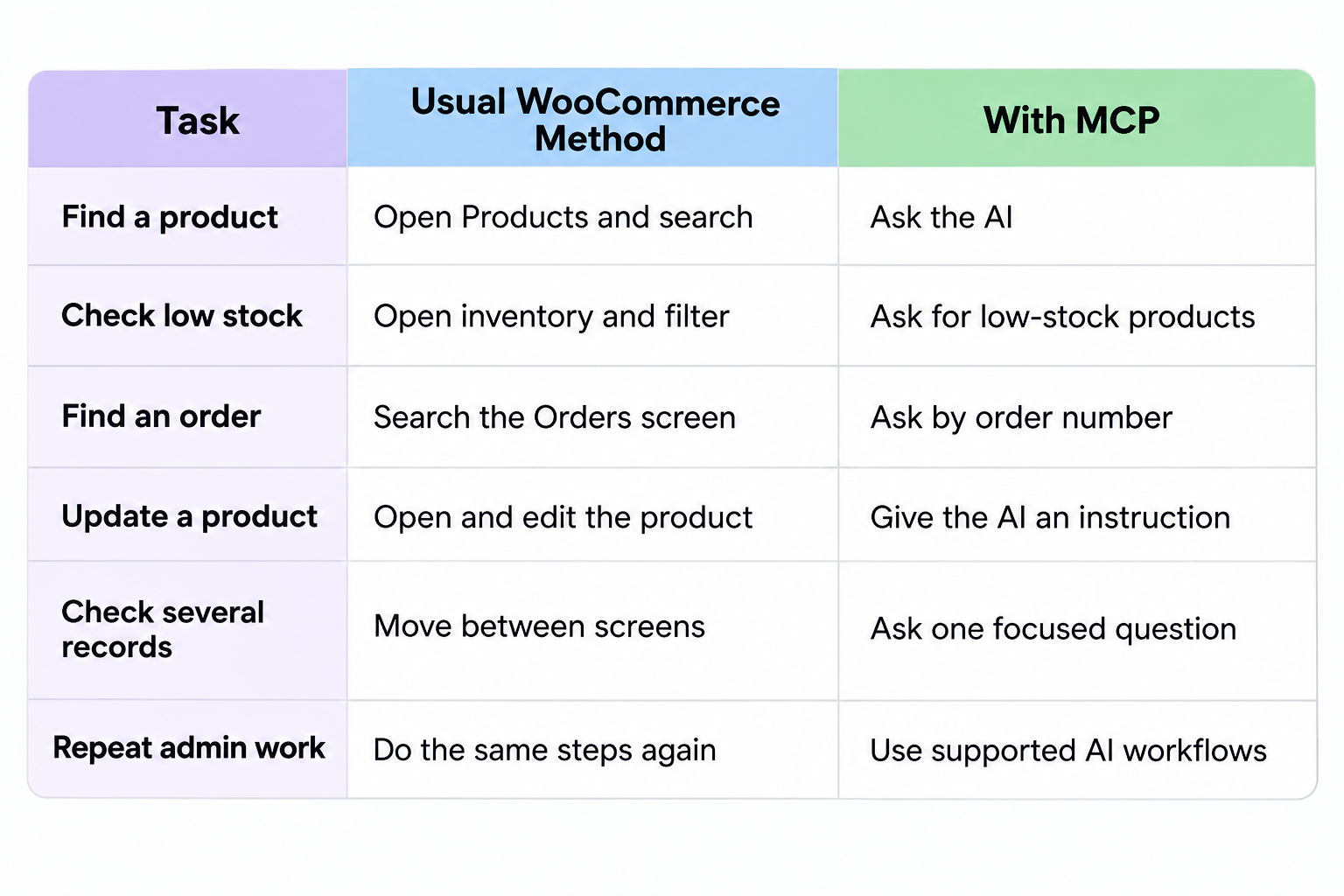
See the difference?
It is a bit like going from searching through filing cabinets to asking someone who knows exactly which drawer to open. You still control the store. MCP simply gives your AI assistant a controlled way to work with it.
And that is why WooCommerce AI becomes more interesting here. It is not just writing product descriptions or generating marketing copy. The AI can start interacting with actual store operations when you give it the right tools.
Before You Set Up WooCommerce MCP
Before connecting anything, decide what you actually want the AI to do.
- Do you only want it to read store information?
- Or should it also be able to make changes?
That one decision affects how you should set up access. There are also two routes worth knowing about because their requirements are not identical.
Native WooCommerce MCP
WooCommerce has built-in MCP support. However, WooCommerce currently describes this implementation as a developer preview.
That means the feature is usable for development and testing, but its APIs and integration patterns can still change as WooCommerce develops it further. WooCommerce recommends thorough testing before production use.
This route makes more sense if you or your developer want to work closer to WooCommerce’s native abilities and MCP architecture.
MCP for WooCommerce Extension
There is also an official WooCommerce Marketplace extension called MCP for WooCommerce, developed by W7S.
This takes a more store-friendly approach. It adds a settings area, connection management, API keys, activity logs, tool controls, and a much larger set of store actions.
Its current requirements include:
- WordPress 5.8 or newer
- WooCommerce 9.0 or newer
- PHP 7.4 or newer
- MySQL 5.6 or equivalent MariaDB
- An AI assistant or client that supports the required connection method
The extension currently supports connections with Claude, ChatGPT, and other compatible tools. Some connection methods also require a paid plan on the AI side.
So, before following a tutorial, check which WooCommerce MCP setup that tutorial is actually talking about. Mixing instructions from the native developer implementation and the marketplace extension can make a simple setup feel far more confusing than it needs to be.
How to Set Up WooCommerce MCP Step by Step
For this walkthrough, we’ll focus on the MCP for WooCommerce extension because it gives store owners a more guided setup and connection screen.
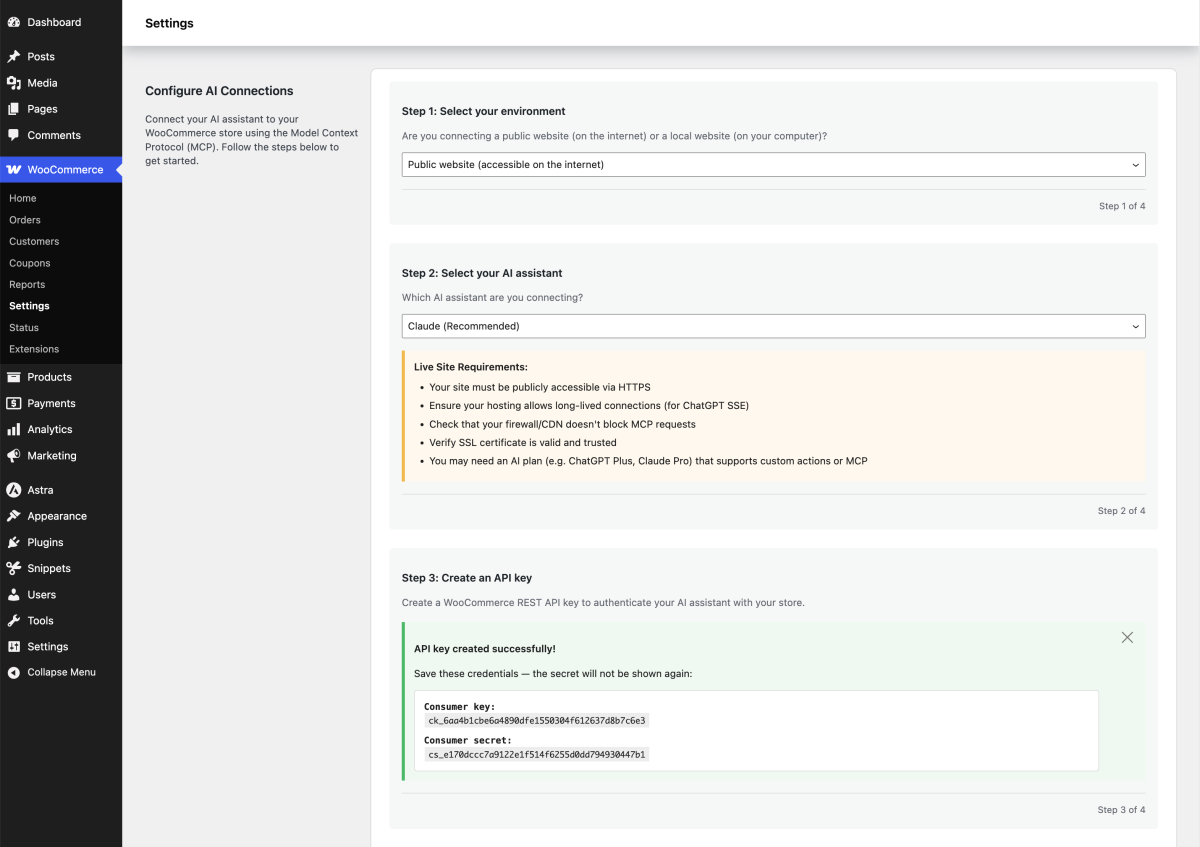
Step 1: Choose Your Store Environment
Select whether you are connecting a public website or a local website. For a live store, make sure the site uses HTTPS and has a valid SSL certificate.
Step 2: Choose Your AI Assistant
Select the assistant you want to connect, such as Claude or ChatGPT. The setup screen will show the requirements for that connection before you continue.
Step 3: Create Your API Key
Generate the WooCommerce API key used to authenticate the connection. Save the Consumer Key and Consumer Secret somewhere secure. The secret may not be shown again.
Step 4: Connect and Verify the Assistant
Follow the setup instructions shown for your selected AI assistant. Then run the verification check to confirm the connection works before using it for real store tasks.
Step 5: Choose Which Store Tools AI Can Use
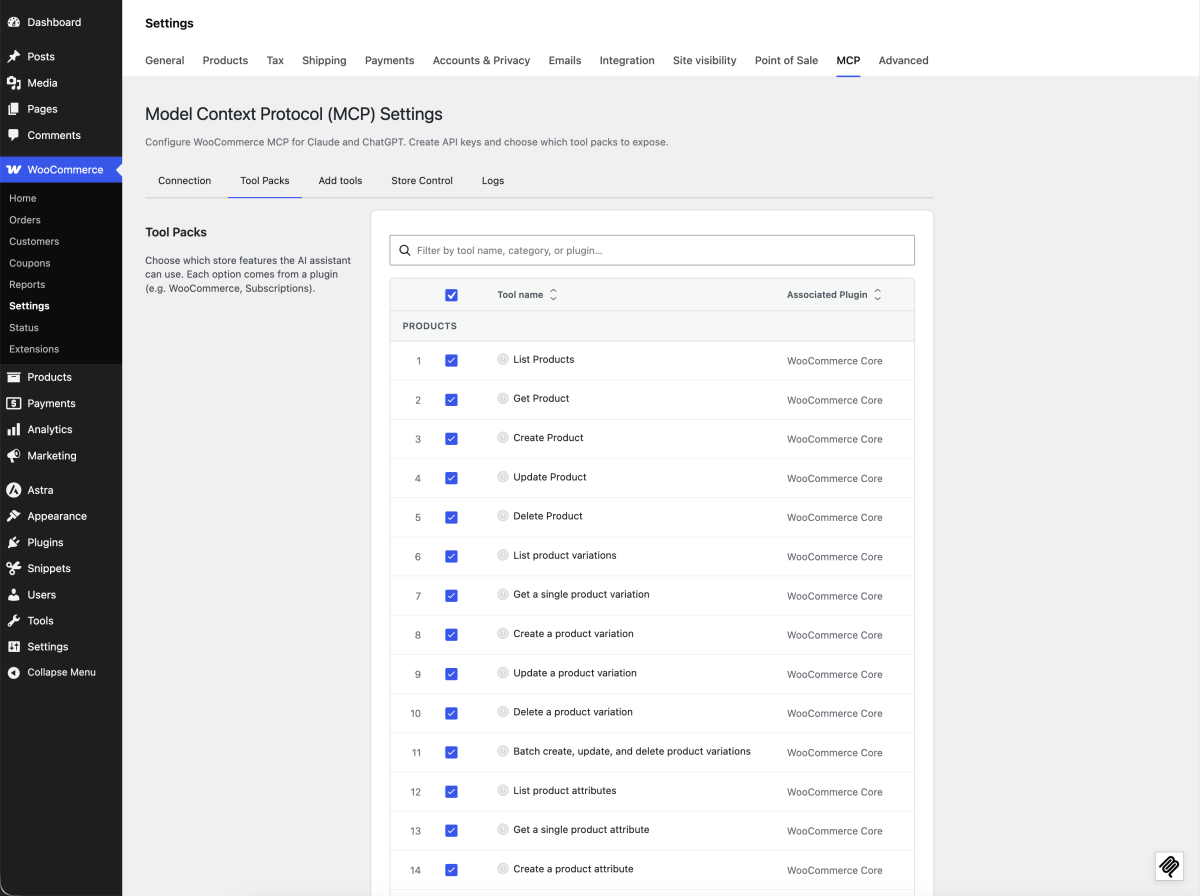
Open Tool Packs and enable only the actions you actually need.
For example, you may allow product lookups but keep delete or refund actions switched off.
Step 6: Test With a Simple Request
Start with something safe, such as: List five products from my store.
Once that works, test more advanced actions one by one.
Useful WooCommerce MCP Prompts You Can Actually Use
Once your WooCommerce MCP connection works, the next question is simple.
What should you ask it to do? Start with tasks you already repeat inside WooCommerce. That is where AI becomes useful, not when you force it into every part of the store.
Product Management Prompts
Try prompts like:
- Show me products with stock below 10.
- Find products without a short description.
- List products that are currently out of stock.
- Change the price of Test Product to £25.
Order Management Prompts
You can also use it to find and review orders:
- Show me orders still marked as processing.
- Find order #1452.
- Show me recent orders from this customer.
- Add an internal note to order #1452.
Store Review Prompts
If your setup exposes reporting and analytics tools, you can go further:
- What were my top-selling products this week?
- How much net revenue did the store make last month?
- Which products are running low and still selling well?
Did you know? WooCommerce has also been testing 18 prebuilt AI workflows for tasks such as weekly store reviews, inventory-risk checks, product-performance reviews, refund analysis, failed-order checks, and revenue-drop investigation. These workflows are still experimental, but they show where AI-assisted store management is heading.
The main point is not to write clever prompts. Ask the same questions you already ask yourself when you open the WooCommerce dashboard.
WooCommerce MCP Security: What Should You Be Careful With?
This part matters more than the clever prompts.
Your WooCommerce store can contain customer names, email addresses, physical addresses, order details, and payment-related information. WooCommerce specifically warns that order and customer tools can expose personal data. It recommends using the lowest level of access needed and rotating or revoking API keys when required.
So, before giving an AI assistant access, set a few basic rules.
Start With Read-Only Access
If you only want reports, order lookups, or product checks, use a Read key. There is no reason to give write access just because it is available.
A read-only key can answer questions without changing products or orders. The official MCP extension also enforces the key permission when a tool runs, so a read-only key cannot suddenly become a write key because of the wording of a prompt.
Turn Off Tools You Do Not Need
The MCP extension lets you enable or disable groups of tools. For example, your support team may need order lookups and notes but not tax settings or product deletion.
Keep the setup tight. Think of it like giving a staff member the keys to the rooms they actually work in, not the whole building.
Be Extra Careful With High-Risk Actions
Some actions deserve a human check.
These include:
- refunds;
- bulk price changes;
- deleting products;
- changing payment settings;
- changing tax or shipping rules;
- editing large numbers of orders.
The MCP extension lets you control individual abilities inside many tool packs, so you can leave useful actions on while switching riskier ones off.
Keep API Keys Private
Treat an API key like a password. Do not post it in chats, documents, screenshots, or shared team notes. If someone no longer needs access, revoke the key.
Native WooCommerce MCP vs MCP for WooCommerce Extension
This part can be confusing because both options use the same MCP idea. But they are not the same setup.
Native WooCommerce MCP
WooCommerce includes native MCP support.
Its current core abilities focus mainly on products and orders. These include product queries, product creation and updates, order queries, order status updates, and order notes. WooCommerce still labels the MCP implementation as a developer preview, so details may continue to change.
This route is useful if you or your developer want to work closer to WooCommerce’s native abilities and build around them.
MCP for WooCommerce Extension
The marketplace extension makes the setup more practical for store use.
It adds:
- connection settings;
- API-key management;
- tool packs;
- activity logs;
- product and order tools;
- customer tools;
- coupons;
- refunds;
- shipping and tax tools;
- reports and analytics;
- webhooks;
- email and system settings.
The extension currently costs $39 for one year or $62.40 for two years at the listed two-year discount.
So, which one should you use?
If you are testing native abilities or building a custom integration, the built-in MCP layer may be enough. If you want a clearer settings area and a wider range of ready-made store tools, the extension can save setup work.
When Built-In WooCommerce MCP Tools Are Not Enough
Here is where things can get more interesting. Your store may have a workflow that WooCommerce does not know about by default.
For example:
“Notify our buying team when a fast-selling product falls below the supplier minimum.”
Or:
“Create a weekly report using our own wholesale and retail product groups.”
Standard tools may not cover these exact steps.
WooCommerce’s newer Abilities system is designed to expose clear store actions that other tools can discover and run. WooCommerce has already expanded this approach beyond basic product and order actions, and extensions can register their own abilities too.
That means a developer can build custom actions around the way your store actually works.
This is where custom WooCommerce development becomes useful. Instead of adding another random automation plugin, you can create a focused workflow that connects WooCommerce with your CRM, reporting tools, internal systems, or approval process.
Can MCP Fully Manage Your WooCommerce Store?
Not in the “turn it on and forget about the store” sense. And I would be careful with anyone selling it that way.
WooCommerce MCP can help AI read store data and carry out allowed actions. But it still depends on the tools you expose, the permissions you set, the quality of the prompt, and the checks you keep in place.
WooCommerce itself still describes the native MCP feature as a developer preview. Its recent Claude workflows are also experiments rather than a promise of fully autonomous store management.
A better way to think about it is: AI-assisted WooCommerce management.
You still make the important calls. The AI helps with the searching, checking, summarising, and selected actions around them.
Is WooCommerce MCP Worth Using?
It can be, especially if your store has a lot going on.
WooCommerce MCP is worth exploring if you:
- manage a large product catalogue
- check orders throughout the day
- spend time pulling the same reports
- already use ChatGPT or Claude for work
- want AI to work with live store data
- need custom WooCommerce workflows
If you run a very small store and only make a few updates each week, the normal WooCommerce dashboard may already be quick enough.
That is the real test. Does MCP remove work from your day, or are you adding technology just because it is new?
If it saves repeated steps, it has a clear job.
Need WooCommerce MCP to Work Around Your Store?
Your store may need more than the standard MCP tools. You might want custom approvals, CRM connections, stock alerts, reporting, or workflows built around the way your team already works.
TeknoFlair can help connect WooCommerce MCP integration with custom WooCommerce features and other business systems, so you are not forced into a one-size-fits-all setup.
Talk to TeknoFlair about building a WooCommerce AI workflow around your store.
Final Thoughts
WooCommerce MCP gives you a different way to manage everyday store tasks. Instead of opening a new screen for every product, order, or report, you can ask an AI assistant to work with approved WooCommerce tools in plain language.
Use read-only access first. Test the results. Keep risky actions under human control. Then add more automation where it actually saves time.
That is where WooCommerce MCP becomes useful: not as a replacement for running your store, but as a faster way to handle some of the work around it.
FAQs
What is WooCommerce MCP?
WooCommerce MCP connects compatible AI assistants with WooCommerce tools. It lets the AI read or change approved store data based on the access you give it.
Does WooCommerce support MCP?
Yes. WooCommerce has native MCP support, although the core implementation is still marked as a developer preview.
Can ChatGPT connect to WooCommerce with MCP?
Yes. The MCP for WooCommerce extension supports a ChatGPT connection through its OpenAPI setup.
Can Claude manage a WooCommerce store?
Claude can work with WooCommerce through supported MCP connections. What it can do depends on the tools and permissions you enable.
Is WooCommerce MCP free?
Native WooCommerce MCP is part of WooCommerce. The MCP for WooCommerce marketplace extension is paid and currently starts at $39/year.
Is WooCommerce MCP safe?
It can be used safely if you control permissions carefully. Start with read-only access, keep API keys private, and disable tools you do not need.
Can WooCommerce MCP update products?
Yes. WooCommerce’s native MCP abilities include creating and updating products, subject to the user’s permissions.
Can AI process refunds in WooCommerce?
The MCP for WooCommerce extension includes refund tools when they are enabled. Because refunds affect real payments, keep tight permissions and human checks around them.
Read More:
Top Ways to Boost E-commerce Conversion Rate With WooCommerce
Maximize Sales with Gamification for WooCommerce: Does It Really Work?
