




Wanted to add a small feature to your WordPress website but stopped because it looked too technical?
Many WordPress website owners believe every small feature requires a developer.
Want to redirect users after login?
Add a small message to a page?
Change how a LearnDash course behaves?
Most people assume they must edit theme files or hire a developer. That approach often feels risky and expensive. But there is a much easier method.
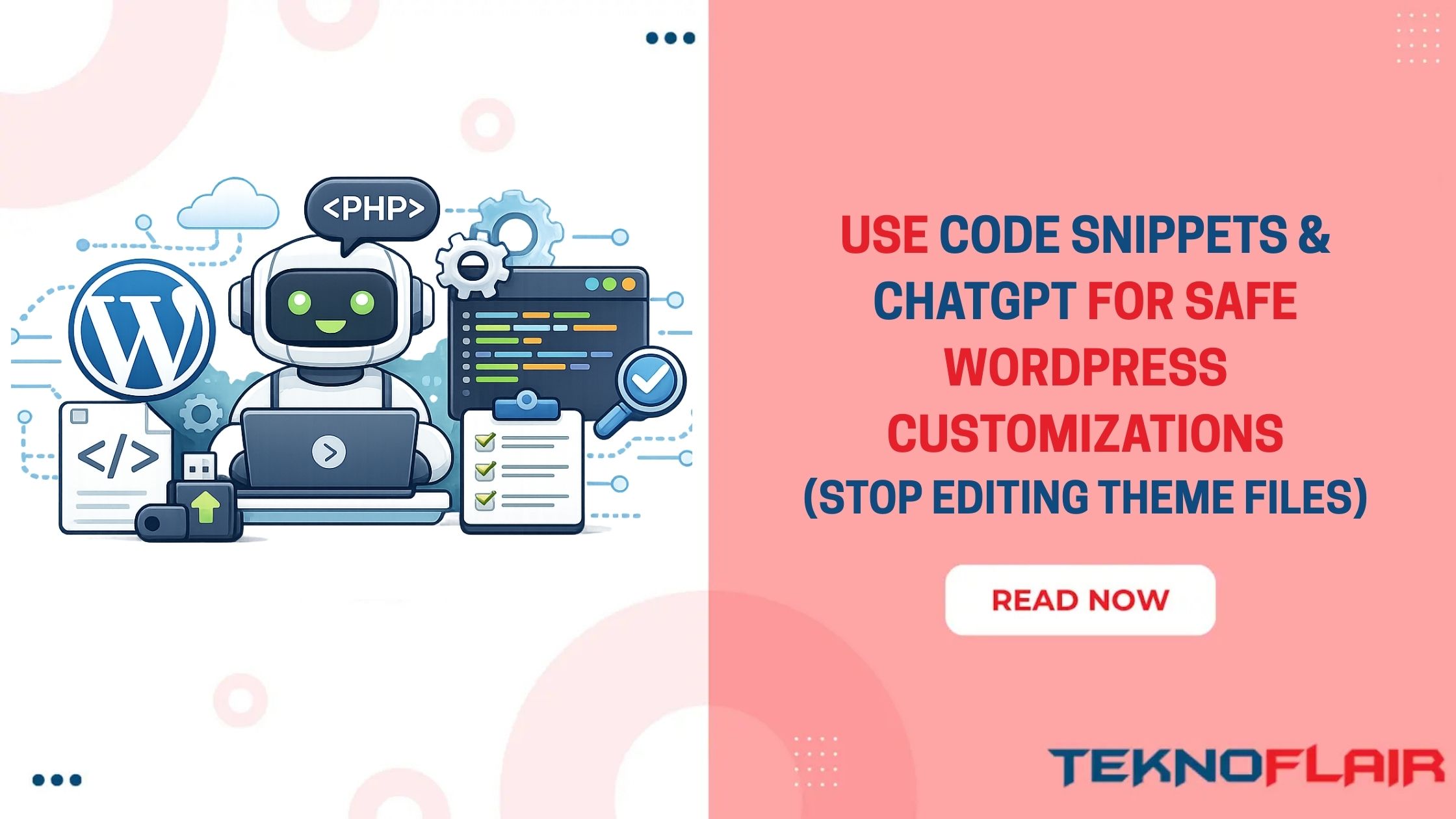
ChatGPT and the Code Snippets plugin easily add your own custom WordPress features without ever touching the theme files and core files.
This method is not about replacing developers. It helps business owners handle small improvements while keeping their websites safe.
Let’s learn an easy method to use AI and code snippets to add simple functionality to your WordPress site.
What Are Code Snippets in WordPress?
A code snippet is a set of code that adds or changes functionality in a WordPress website.
It is a small feature enhancement for your website. Instead of installing a new plugin or editing your theme files, you are adding a snippet of code that does a single task.
For example, a snippet can:
- Redirect users after login
- Disable comments on your website
- Add custom functionality to LearnDash
- Modify small WordPress behaviors
- Improve admin experience
Snippets work best when the change is small and focused. They help you add features without installing large plugins that slow down your website.
For many WordPress sites, snippets provide a simple and efficient way to customize functionality.
Why You Should Avoid Editing Theme Files
Some tutorials suggest editing the functions.php file or other theme files. This method works, but it carries risks.
One small mistake can break your entire website. A missing character or incorrect line of code may cause errors. Theme updates also create problems. When a theme updates, it can overwrite your changes. This means you lose the custom feature you added.
For non-technical website owners, this creates stress and confusion.
Common problems include:
- Theme updates removing custom changes
- Website errors caused by small coding mistakes
- Difficulty tracking what code was added
- No easy way to disable a feature if something breaks
Because of these risks, professionals rarely recommend editing theme files directly for small customizations.
However, a safer method exists.
Use a Code Snippets Plugin for Safe Customization
A Code Snippets plugin provides a safe place to add custom functionality. Instead of editing theme files, the plugin stores your snippets separately. This keeps your theme clean and reduces risk.
The process is very simple. Add a snippet and activate it. Now WordPress takes care of the functionality automatically.
Benefits of a Code Snippets Plugin:
- You avoid editing theme files
- You can enable or disable snippets easily
- Your snippets remain safe during theme updates
- All custom code stays organized in one place
If something goes wrong, just deactivate the snippet. This approach makes small WordPress customizations much safer for business owners.
How ChatGPT Helps You Create Code Snippets
This is where AI becomes powerful. This is where AI becomes powerful. Previously, finding a small code solution required searching forums, reading developer discussions, and trying out different solutions.
Today, you can simply describe the feature you want. ChatGPT can generate a basic WordPress snippet for you.
For example:
- Create a LearnDash snippet to Disable comments across the entire website
- Create a LearnDash snippet that hides the course progress bar.
ChatGPT will generate a starting point that you can review and test.
However, it is important to remember something. It works best for small custom functions, not complex systems. Use AI to speed up simple tasks, but always test code carefully.
Step-by-Step Guide to Create a Custom WordPress Code Snippet Using ChatGPT
Let’s walk through the basic process.
Step 1: Describe the Custom WordPress Feature Clearly
Explain to ChatGPT what feature you want your website to do. The clearer your description, the better the code you will receive.
For example:
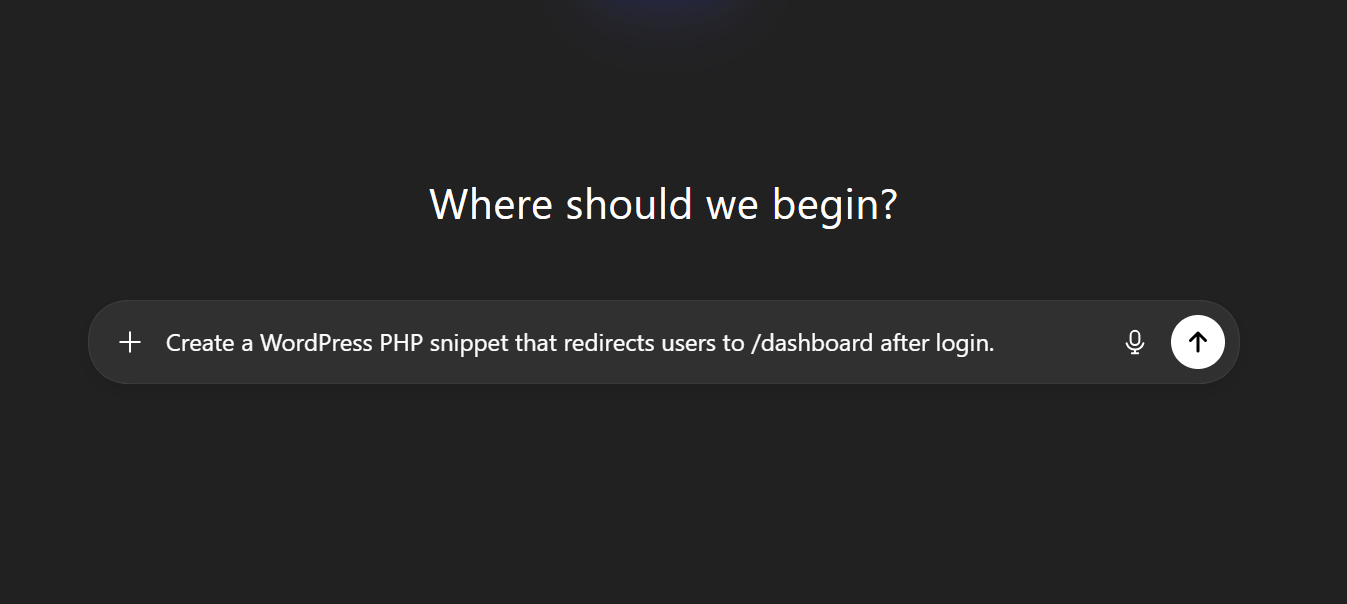
Avoid vague requests like “change login behavior.” Specific requests produce better results.
Step 2: Generate the Snippet
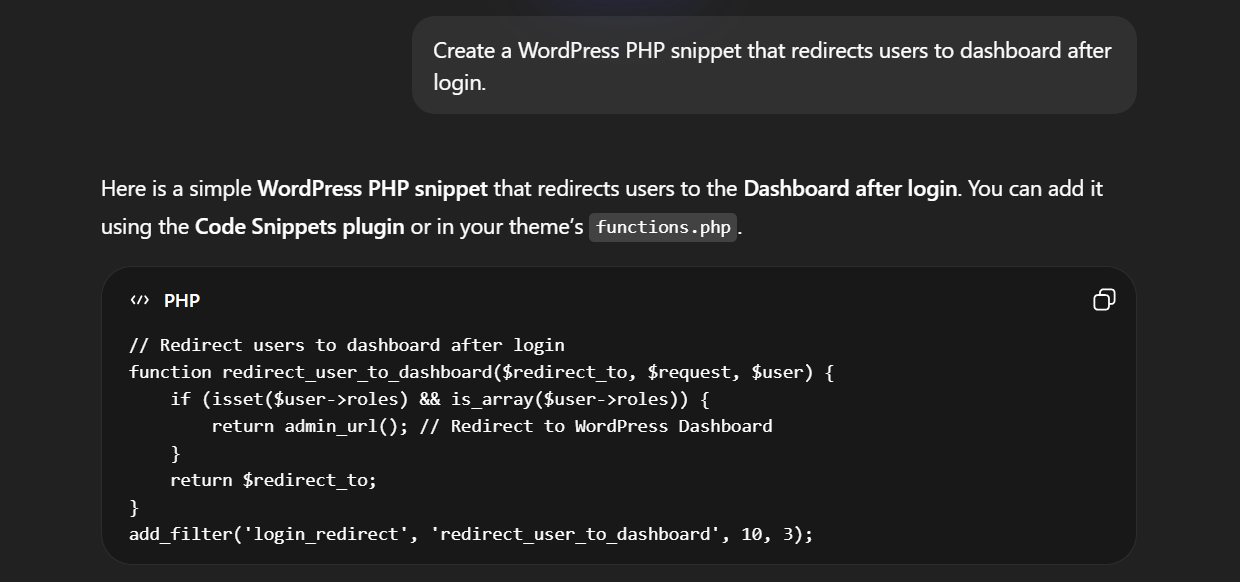
Now ChatGPT will generate a small piece of code. Do not worry if you do not fully understand the code. Focus on whether it matches the feature you requested.
Step 3: Review the Code
Before using the snippet, review it briefly.
You can ask ChatGPT questions like:
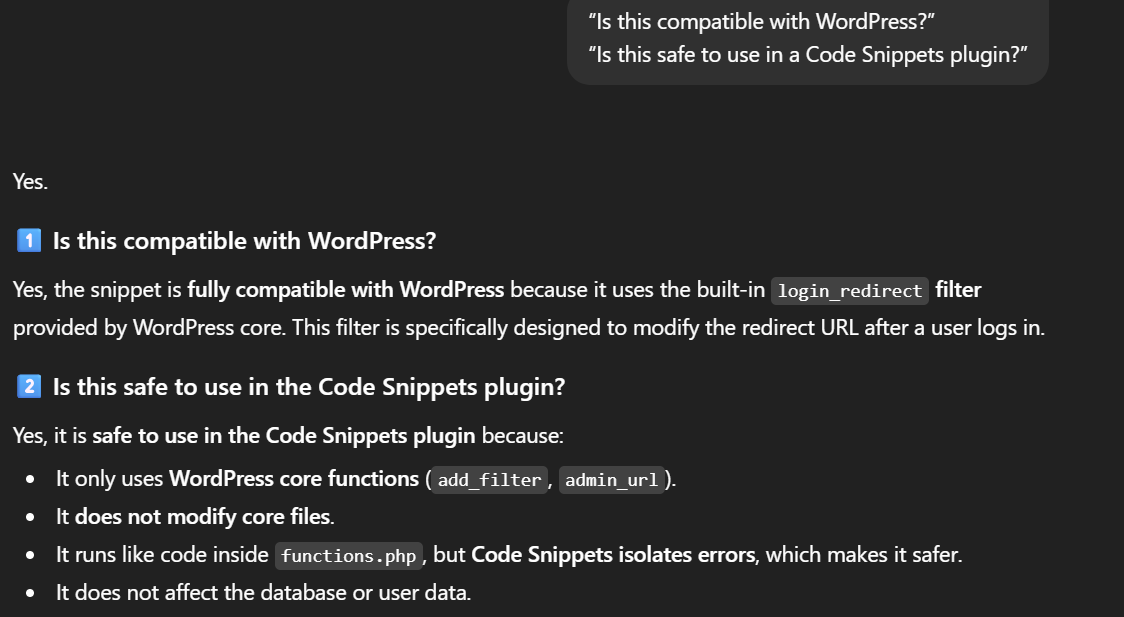
This step helps you understand what the code will do. If something looks overly complex, it may be better to seek developer help.
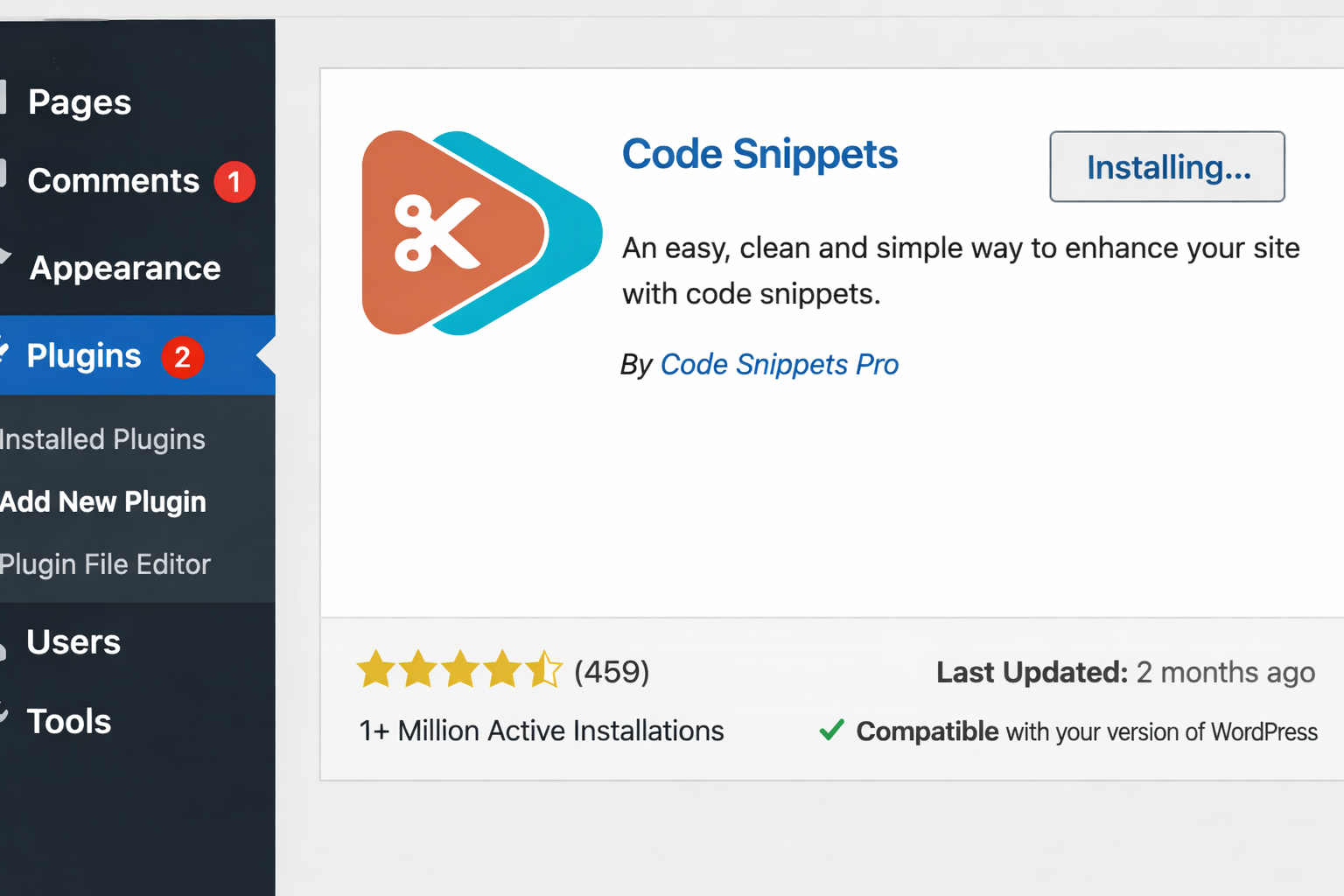
Step 4: Install the Code Snippets Plugin
Next, install the Code Snippets plugin from the WordPress plugin directory.
After installing and activating it:
- Go to Snippets → Add New
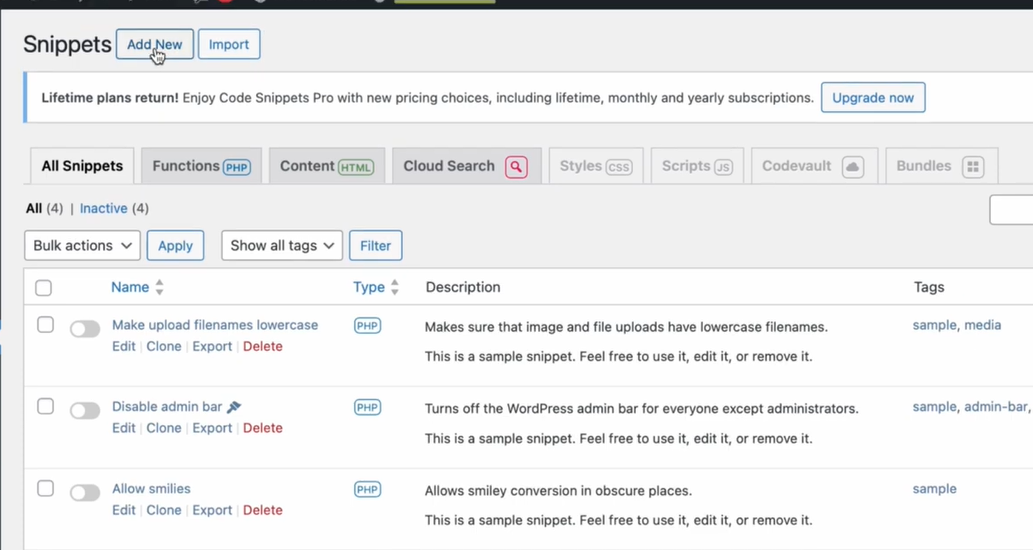
- Give your snippet a name
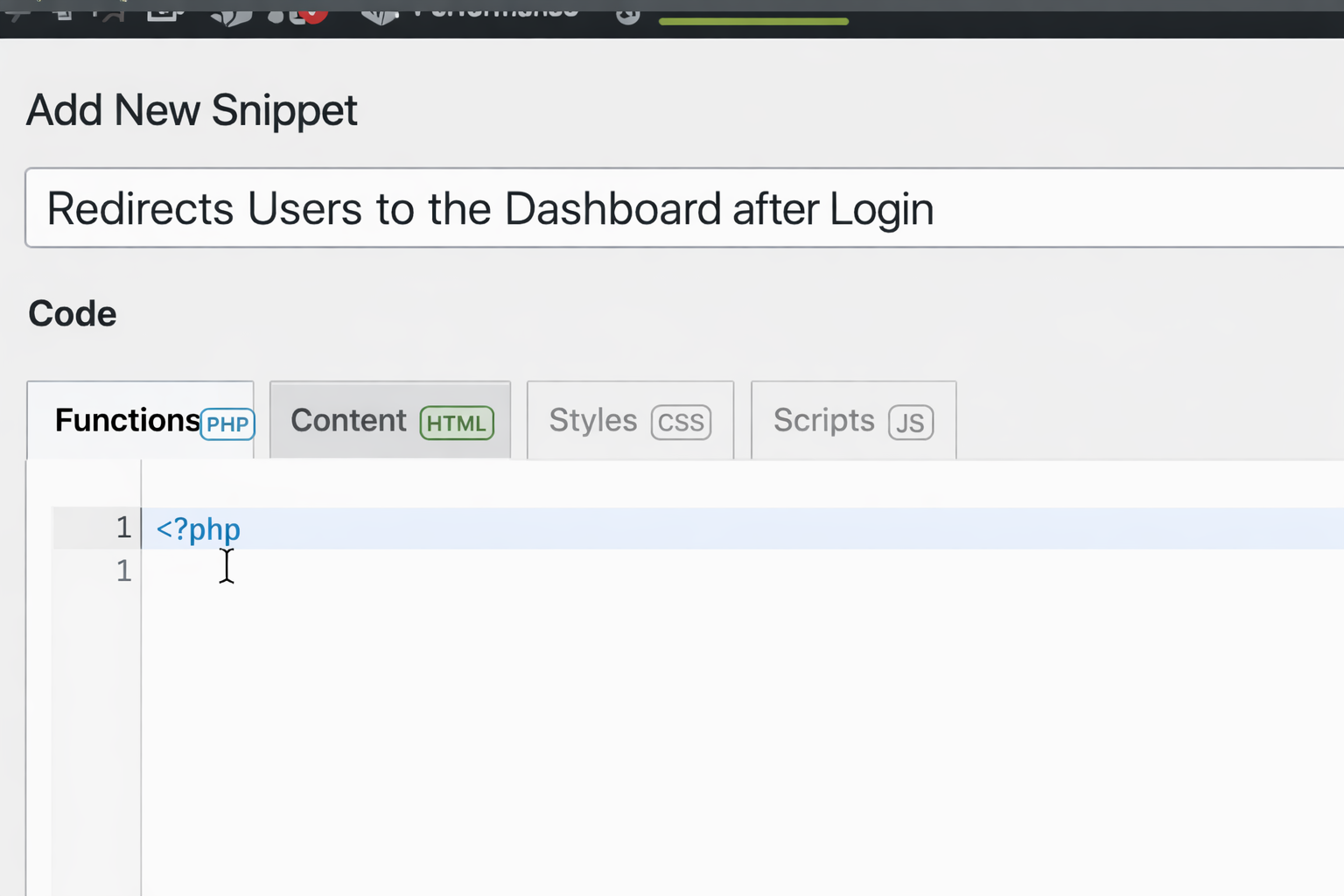
- Paste the code
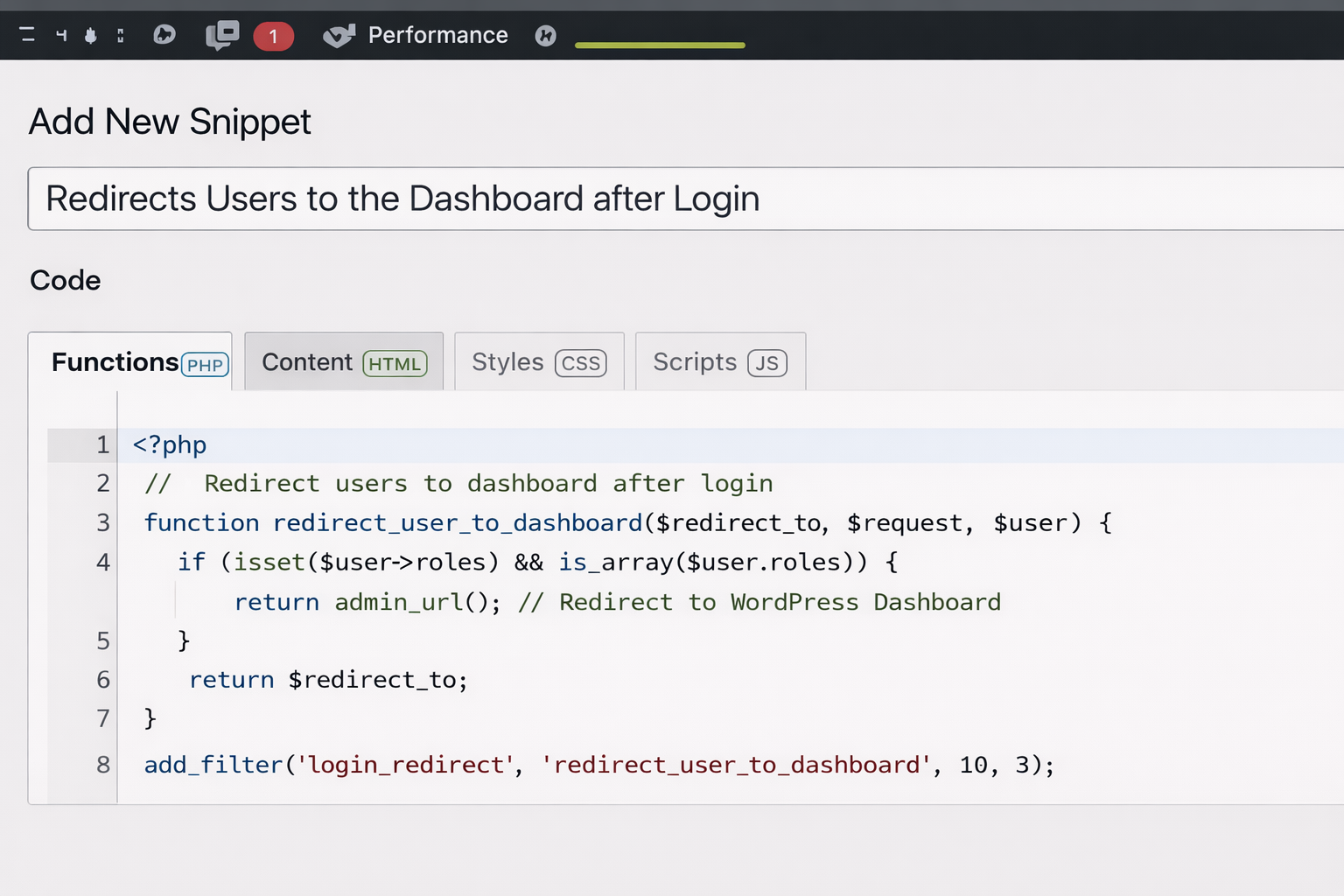
- Save and activate the snippet
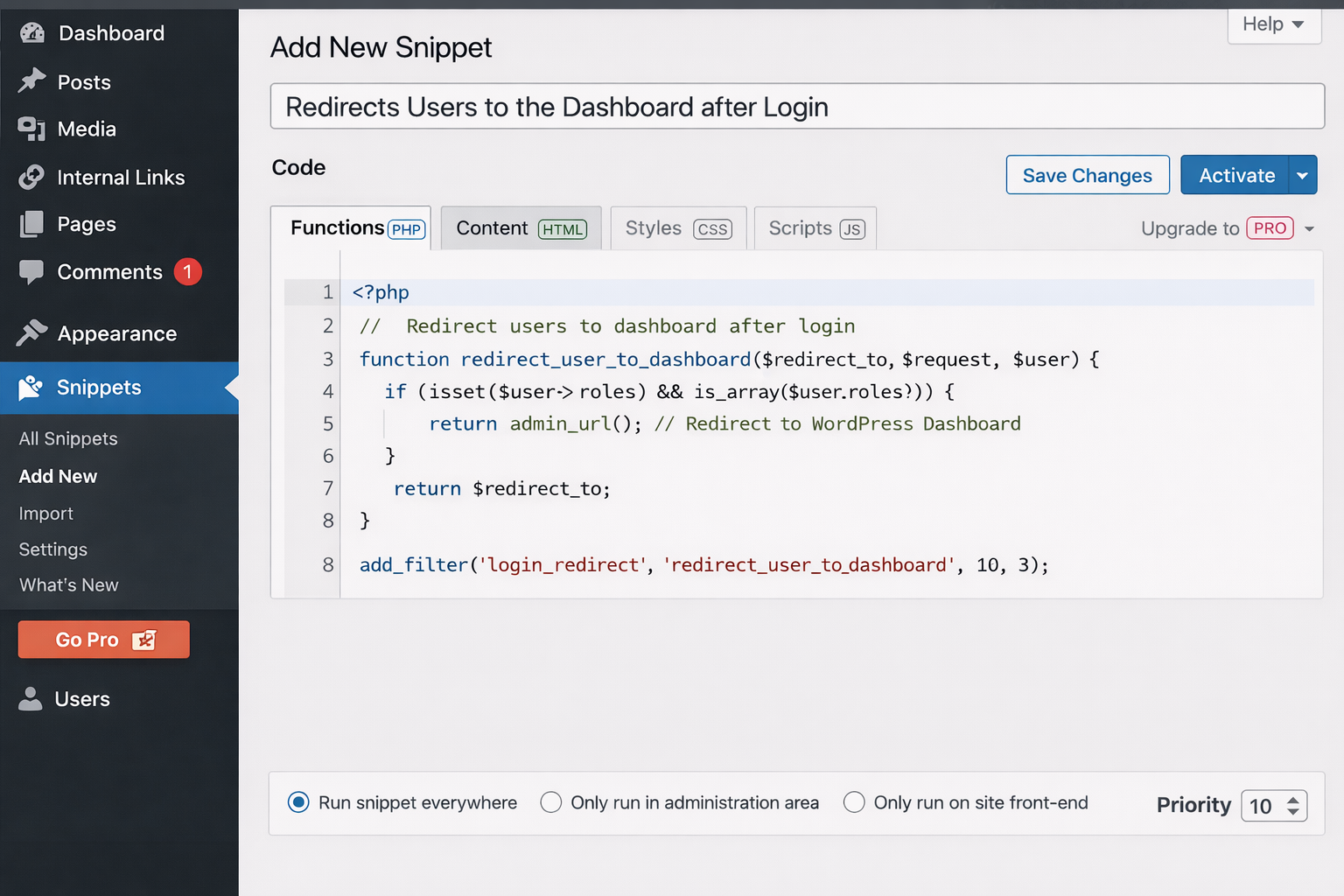
WordPress will now apply the functionality automatically. You have successfully added a custom feature without editing any theme files.
Examples of Useful WordPress Code Snippets You Can Create with ChatGPT
Small snippets can add helpful functionality without installing heavy plugins. Below are a few easy examples you can try using the Code Snippets plugin.
Example 1: Redirect Users to a Dashboard After Login
Many membership or LearnDash websites want users to land on a dashboard instead of the default WordPress admin area.
You can create a snippet that redirects users to a custom page after login.
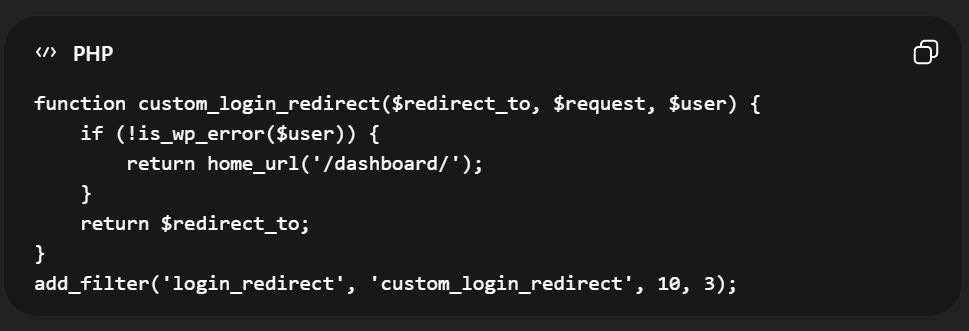
What this snippet does
- Redirects users after login
- Sends them to /dashboard
- Works well for membership sites and LMS portals
If your LearnDash site has a student dashboard, this snippet improves the user experience.
Example 2: Disable Comments Across Your WordPress Website
Many business websites and LMS platforms do not need blog comments. Disabling them reduces spam and keeps the website cleaner.
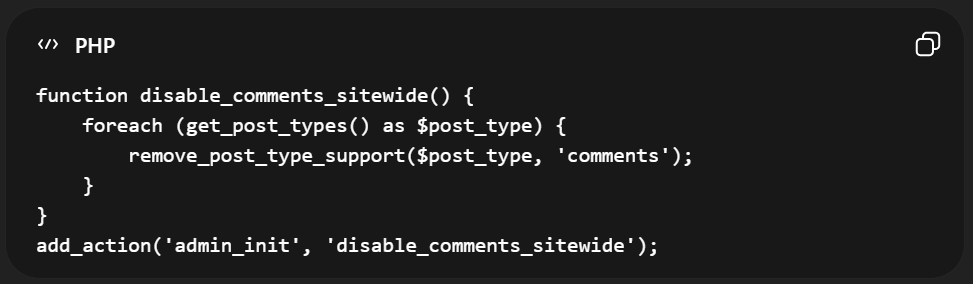
What this snippet does
- Removes comment support from all post types
- Prevents comment fields from appearing
- Helps reduce spam on WordPress websites
This is a simple snippet that many business websites use.
Example 3: Hide the WordPress Admin Bar for Non-Admins
On membership sites or LMS platforms, the admin bar can confuse users. You may want only administrators to see it.
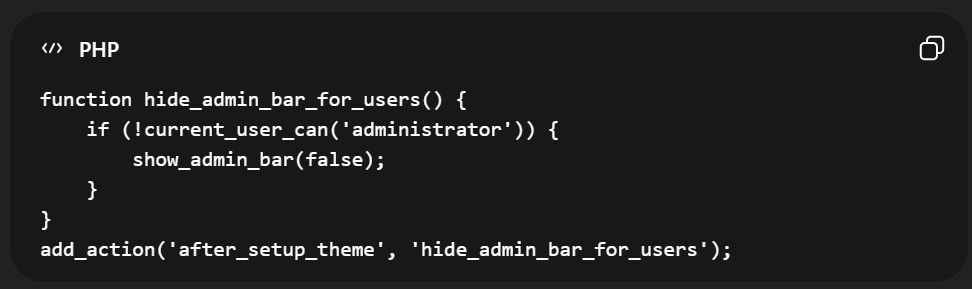
What this snippet does
- Hides the admin bar for regular users
- Keeps it visible for administrators
- Creates a cleaner front-end experience for students or members
This is especially useful for LearnDash course websites where students only need access to course content.
Site Broke After Adding a Snippet? Here’s How to Revert It Using Safe Mode
Sometimes a snippet causes a small error that breaks your site. This usually happens if there is a syntax mistake or a conflict with your theme or another plugin. But you can quickly fix it using the Safe Mode feature in the Code Snippets plugin.
Safe Mode temporarily disables all snippets so your website can load normally. It accesses the WordPress dashboards and identifies the snippet causing the issue.
Here is how you revert the change safely:
- Log in to your WordPress admin panel.
- Go to Snippets → All Snippets.
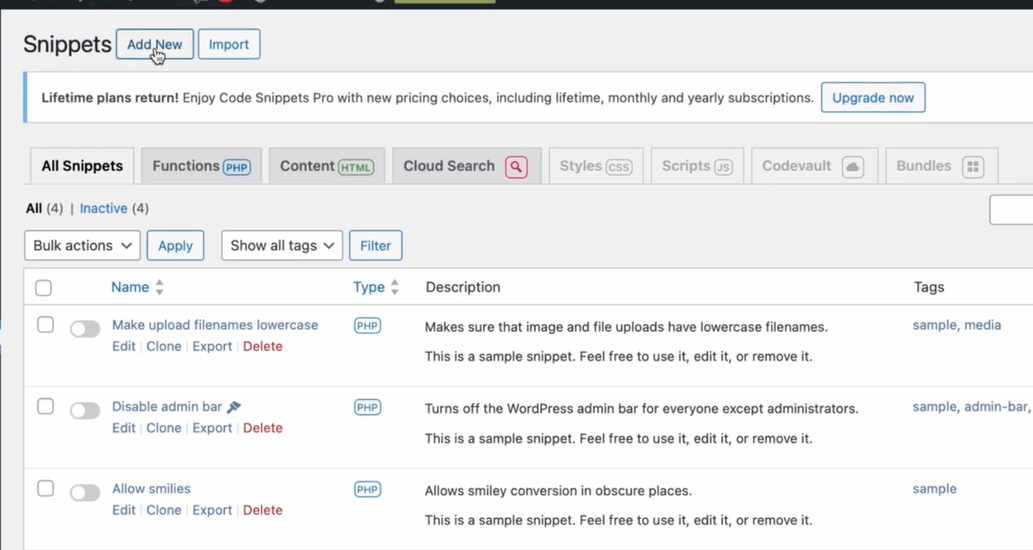
- Enable Safe Mode from the plugin settings.
- Your site will load with all snippets disabled.
- Find the snippet that caused the issue and deactivate or edit it.
Disable Safe Mode once you fix or remove the problematic snippet, and your site will run normally again.
This feature makes it safer to experiment with custom functionality. Without risking permanent downtime on your live site.
Best Practices When Using AI for WordPress Snippets
AI tools can save time, but you should still follow safe practices.
Here are a few important guidelines.
Test on a Staging Site
Whenever possible, test snippets on a staging site before adding them to your live website. This prevents unexpected errors from affecting your users.
Keep Snippets Simple
Small snippets are safer. Avoid adding large blocks of code that change major system behavior. If the code looks complicated, it probably belongs in a custom plugin or professional development project.
Document Your Snippets
Always name your snippets clearly and add notes describing what they do.
For example:
- Clear documentation helps you remember why the snippet exists.
- Redirect users to the dashboard after login.
Disable Unused Snippets
If you stop using a feature, deactivate the snippet. This keeps your website clean and easier to manage.
When You Should Ask a Developer
While snippets can be helpful tools, they are not always the answer. Some changes require deeper development.
You should involve a developer when:
- The feature changes the database structure
- Payment systems are involved
- Security-sensitive functionality is required
- The customization affects many parts of the website
- The code looks complicated or unclear
Snippets should only be used for small changes, not for architecture changes.
Why This Approach Works Well for LearnDash Websites
LearnDash websites often need small customizations. Course creators want flexibility without rebuilding their LMS.
Common LearnDash adjustments include:
- Adjusting course navigation
- Adding dashboard improvements
- Customizing user experience
Using code snippets allows you to implement these small features quickly. Instead of modifying core plugin files, you keep your changes separate and easier to manage.
This makes your LearnDash website more flexible and easier to maintain over time.
AI and Code Snippets Make WordPress More Flexible
WordPress has always been flexible, but customization often required developer knowledge. Today, AI tools help simplify that process.
With ChatGPT and a Code Snippets plugin, business owners can safely implement small improvements without heavy development work. The key is to use this approach responsibly. Use this method carefully and keep things simple. It can save time and improve your website faster if used properly.
At TeknoFlair, we support businesses in building and improving LearnDash platforms that are secure and easy to maintain. So, if you are unsure whether a feature should be added with a simple snippet or a custom solution, get expert guidance to avoid issues and save time.
